This guide shows how to score a target round in ArcherySuccess. The example is a WA 70/720: 2 distances at 70m, 6 ends of 6 arrows each, on a 122cm face. Every target round works the same way.
For field, 3D, 2D and animal rounds, see How to score a field round.
This guide covers:
- Start a round
- Score each end, and the crown button Set
- Fix a wrong arrow
- See the scorecard
- Stop and resume a round
Start a round
- On the Score or Plot page, tap New Round (top right).
- On the Search for a Round page, type part of the name, for example 70/720. To narrow the list, tap an organisation in the index on the right, for example WA: the app adds it to the search. Then tap the round.
- If the app asks, pick Competition or Practice. See What is Competition or Practice?
The round opens on the page you were on.
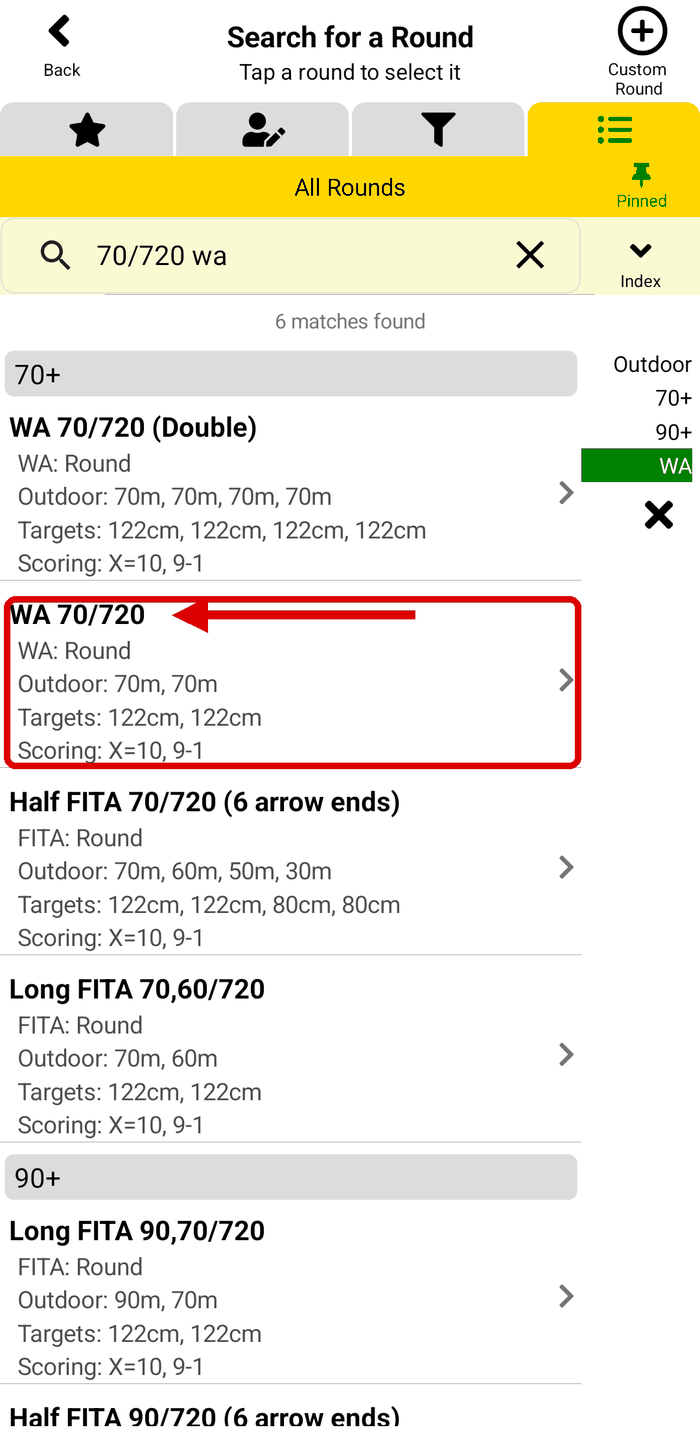
Step 2: Search for a Round
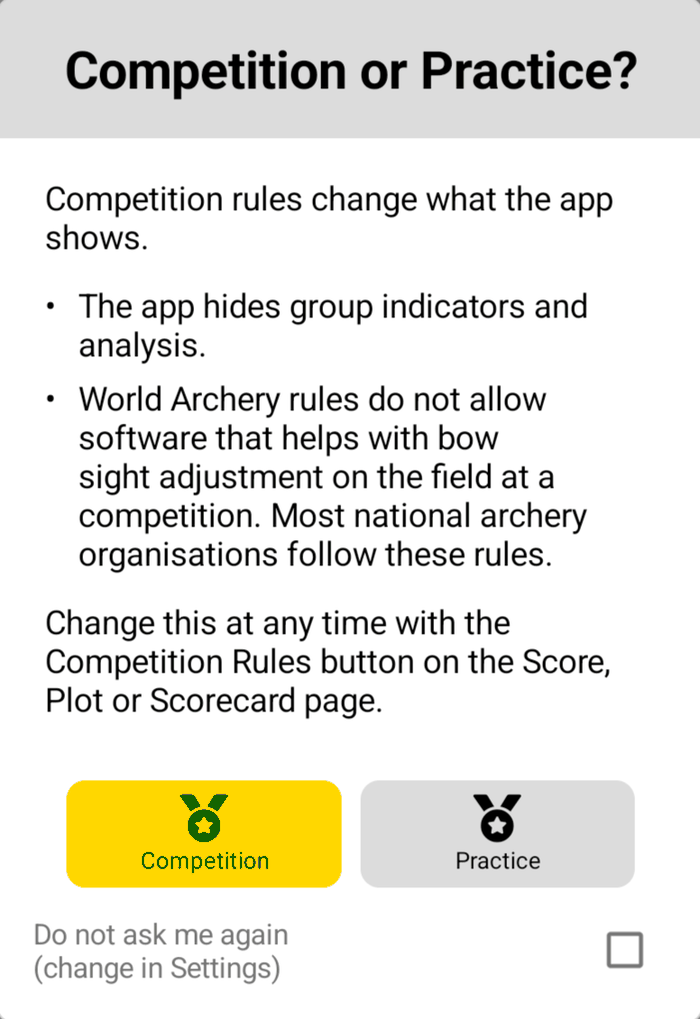
Step 3: Competition or Practice?
Score each end
You can score an end in two ways, and change between them at any time:
- Score page - tap the score buttons: X, 10 to 1, and M for a miss.
- Plot page - tap where the arrow hit on the target face. The app scores the arrow from where it lands.
When an end is full, the next arrow starts the next end.
While you shoot, the page shows your end total, your running total and your Skill, for example "Skill: 106.2" on the Score page or "(107.1)" on the Plot page. Skill is the ArcherySuccess rating of how well you shoot. See What is the Archer Skill rating?
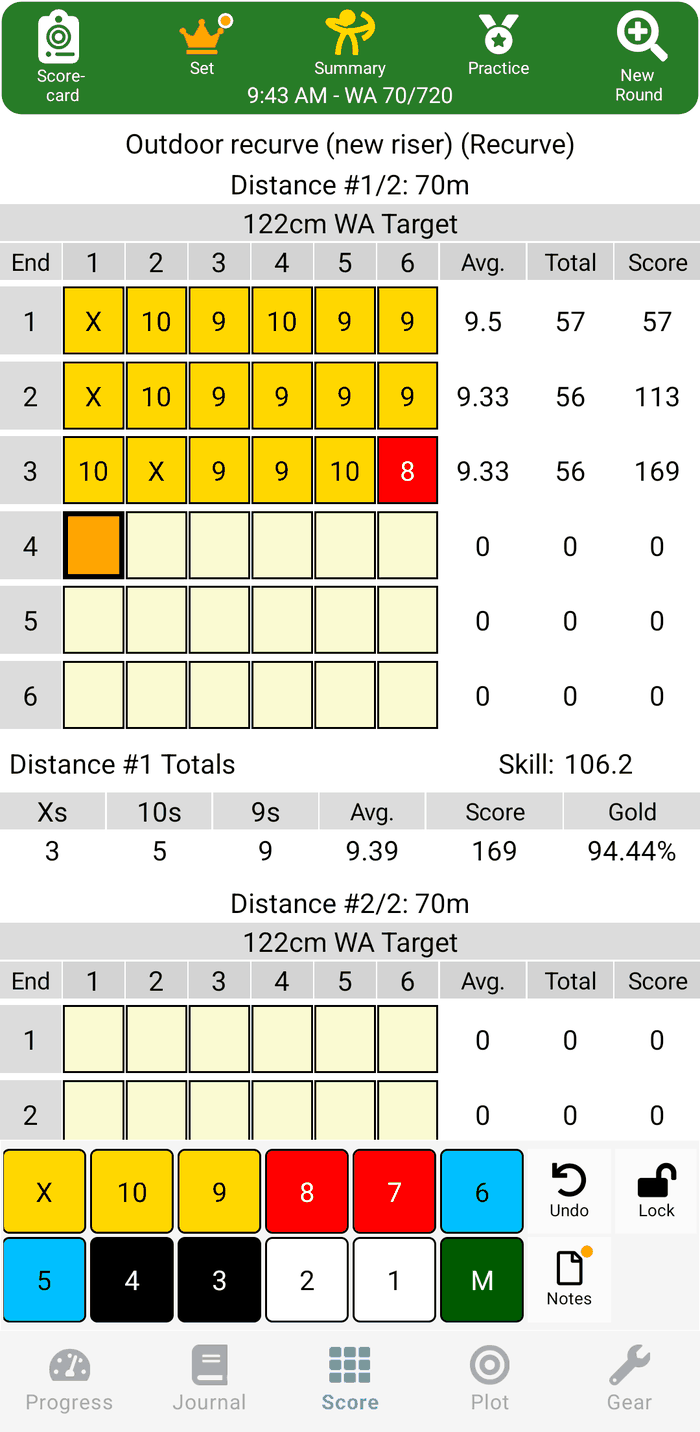
Score
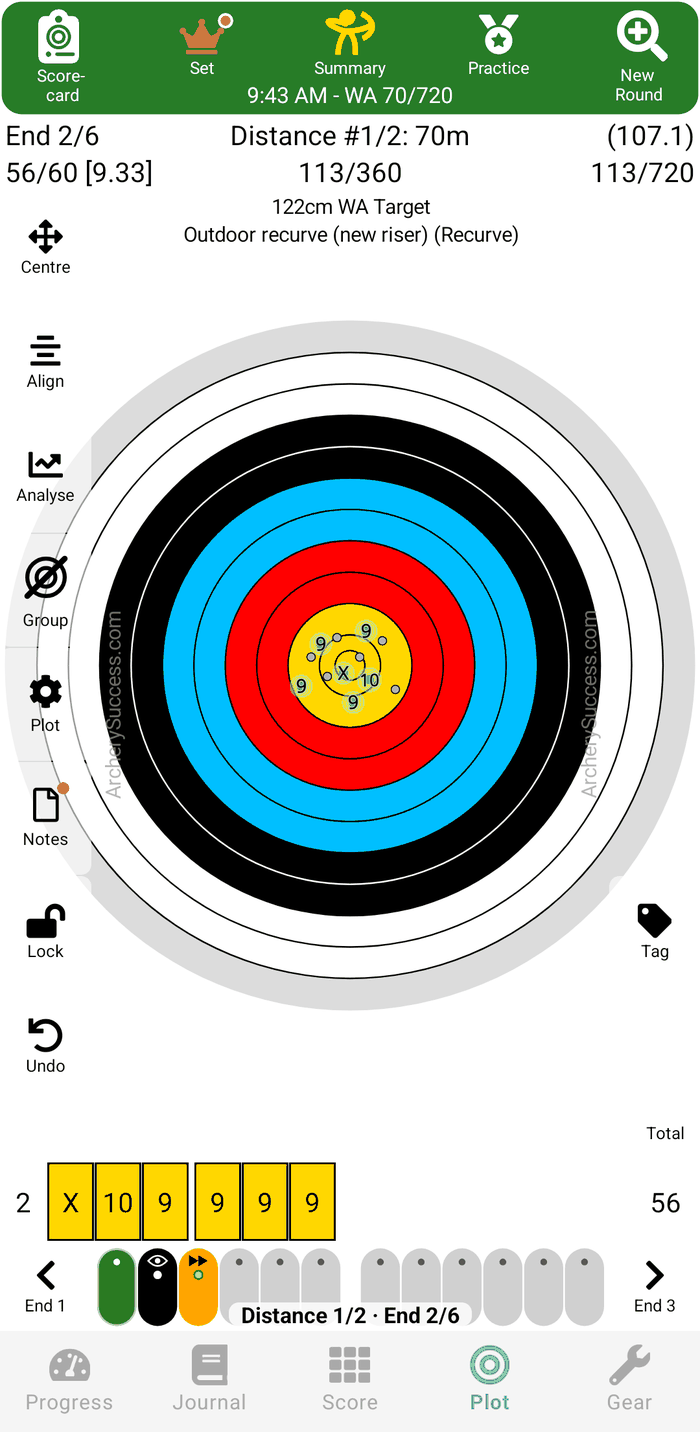
Plot
The crown button: Set
The crown button, Set, at the top of the Score and Plot pages, opens the Award Setup page of the round:
- How this round is rated: the awards and classifications the round counts for.
- Archer Details: your member number, Competes as, Age Group and Division (bow type).
- Gear Setup: the bow and arrows of the round.
An orange dot on Set means the app needs one more detail to rate your round, for example your age group. The same dot shows beside that field. Fill it in, then tap Back.
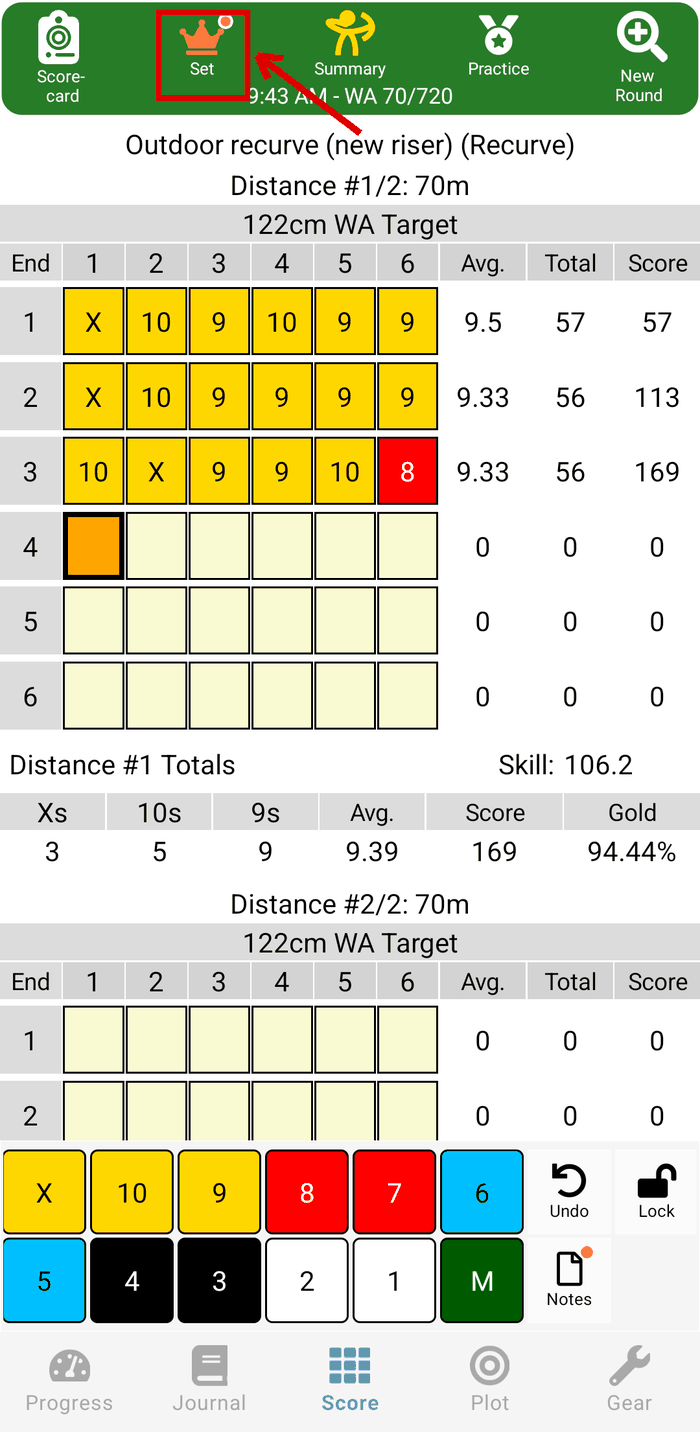
Set, with an orange dot
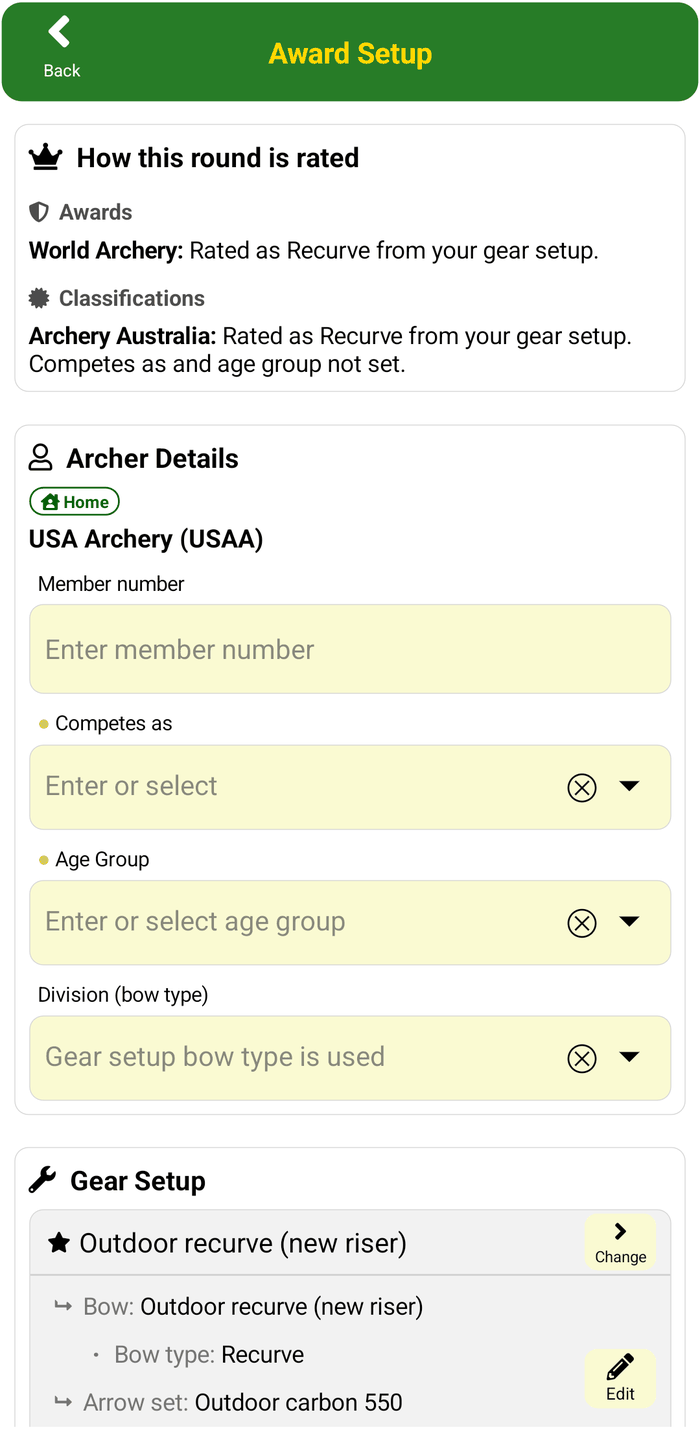
The Award Setup page
Fix a wrong arrow
- Tap Undo. The last arrow turns orange.
- Tap Undo again to remove the arrow.
- Score or plot the arrow again.
See the scorecard
- A round you shoot now: tap Scorecard (top left of the Score or Plot page).
- A round you shot before: in the Journal, tap the round.
The scorecard shows the round details, your gear setup, your awards, and each distance with its Skill, its handicap and its totals: Xs, 10s, 9s, Gold, and the arrow and end average. Tap Distance to show or hide the arrow plots. Tap Email to share the scorecard.
Pro adds Analysis: your rank and Personal Best for the round, Score Estimates and more charts. See the Scoring page.
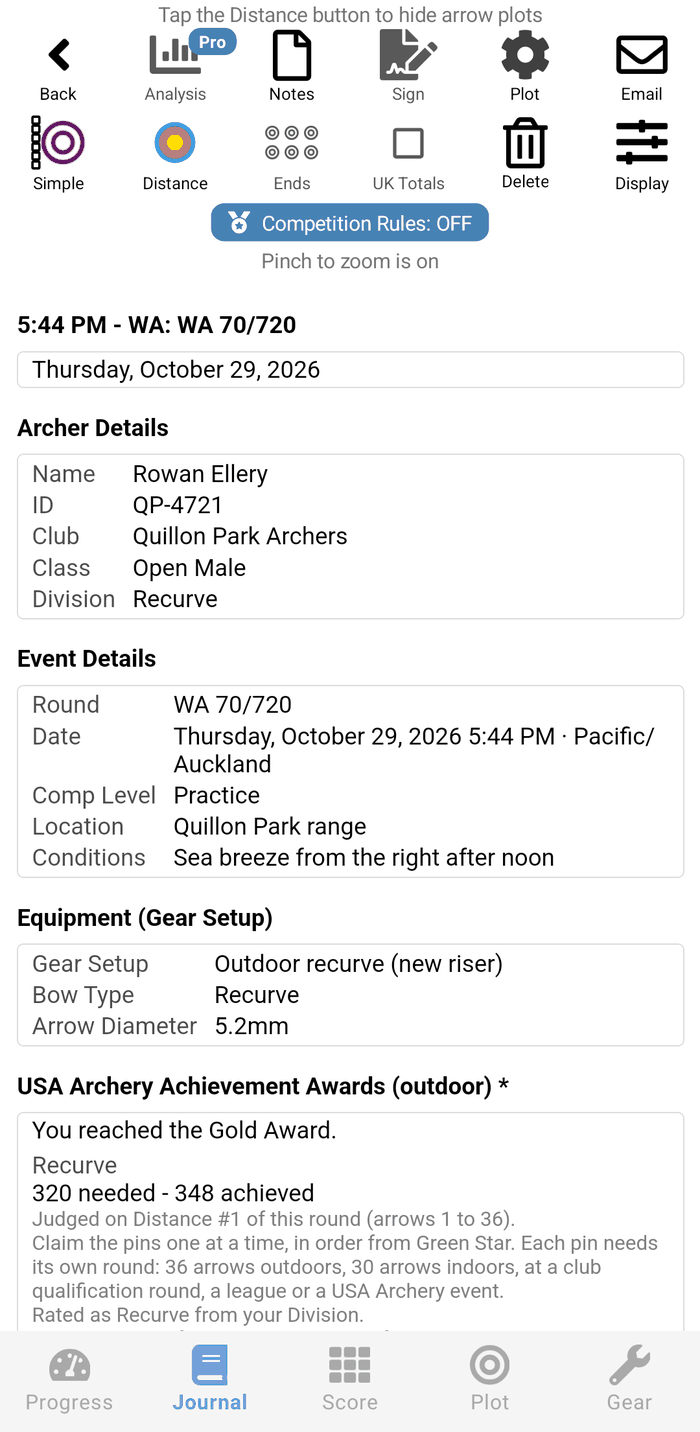
Scorecard: the round details
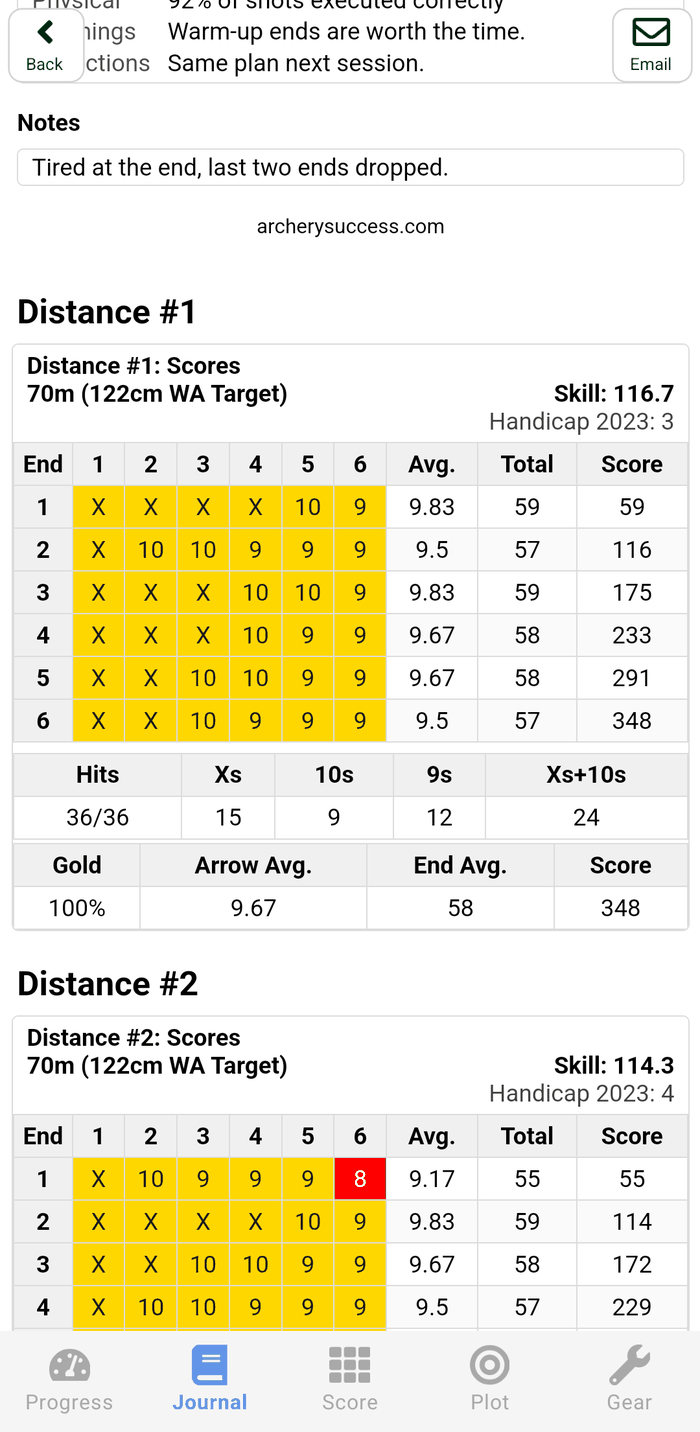
Scorecard: Distance #1
Stop and resume a round
The app saves each arrow when you enter it. The round waits in the Journal.
- In the Journal, swipe the round left and tap Resume.
- The Plot page opens with the round. A resumed round is locked, so a tap cannot change an arrow by mistake. Tap Tap to Unlock to go on scoring.
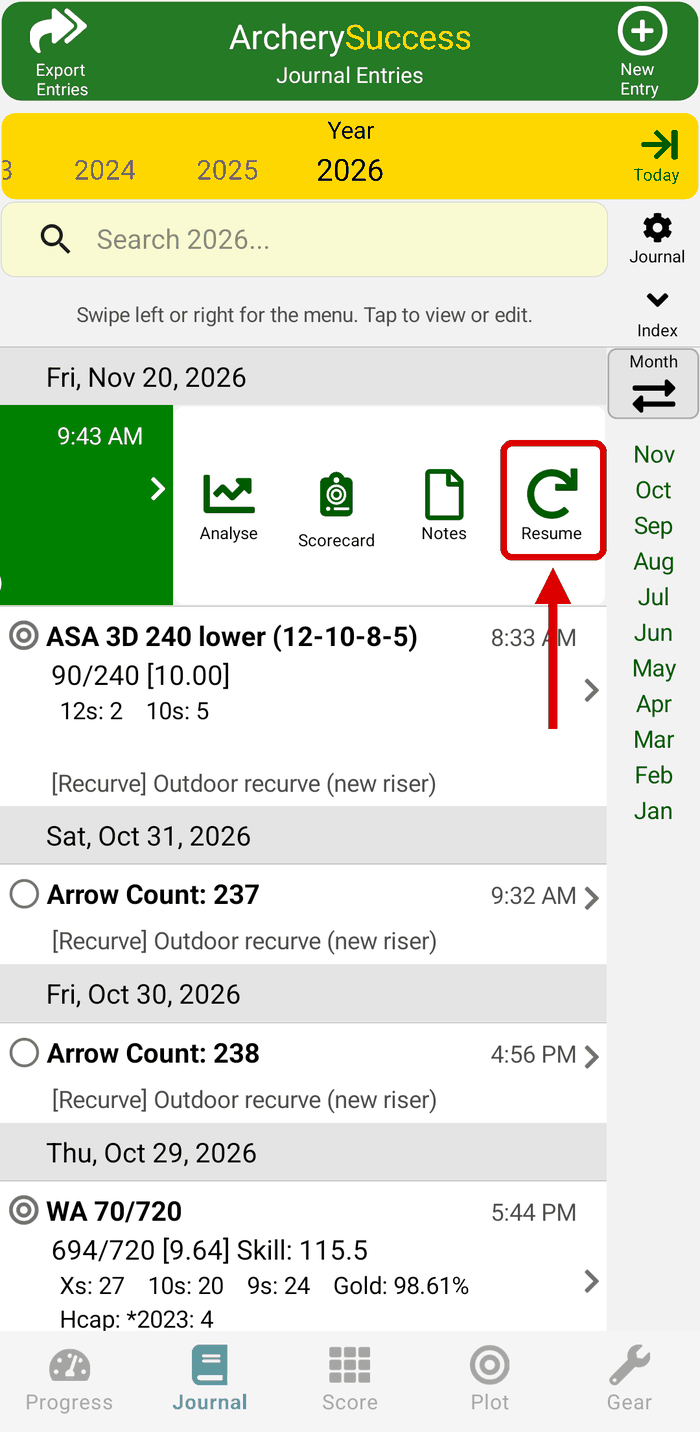
Step 1: swipe left on the round, tap Resume
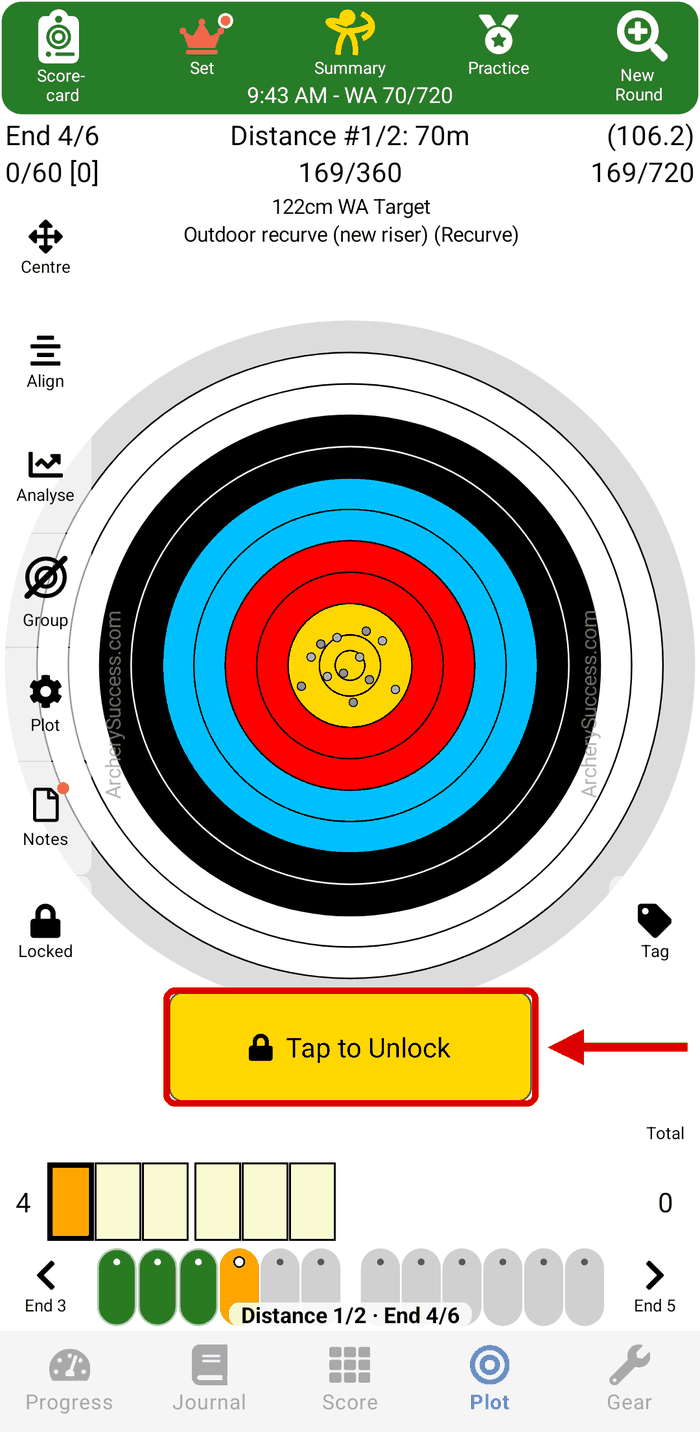
Step 2: Tap to Unlock
When you are done, tap Lock to stop changes. See Round locking.
What next?
- How to score a field round - field, 3D, 2D and animal rounds.
- How to make a custom round - your round is not in the list?
- How to make a list of your favourite rounds - your rounds with one tap.
- Weekly Progress - your week, your Personal Bests and your trends.
- Arrow tagging and analysis - find the arrows that group badly.
Still stuck? See the Support page for more how-to guides, or contact us - we reply within 2 working days.