In ArcherySuccess, field, 3D, 2D and animal rounds all work the same way. You pick the round, then you change the target details at each stake as you walk the course. You can tap the score of each arrow or plot it on the target face, and you can change between the two at any time.
For a target round, for example a WA 70/720, see How to score a round.
This guide covers:
- Score or plot?
- Start a round
- Change the target at each stake
- See the scorecard
- Clone a course to shoot it again
Score or plot?
You can score a round in two ways, and change between them in the same round:
- Score page - tap the score buttons, without a plot.
- Plot page - tap where the arrow hit on the target face. The app scores the arrow from where it lands. For precision plotting, touch and hold, move your finger to the exact place, then lift it. The bar at the bottom shows each target of the course: green is done, orange is the target you shoot now.
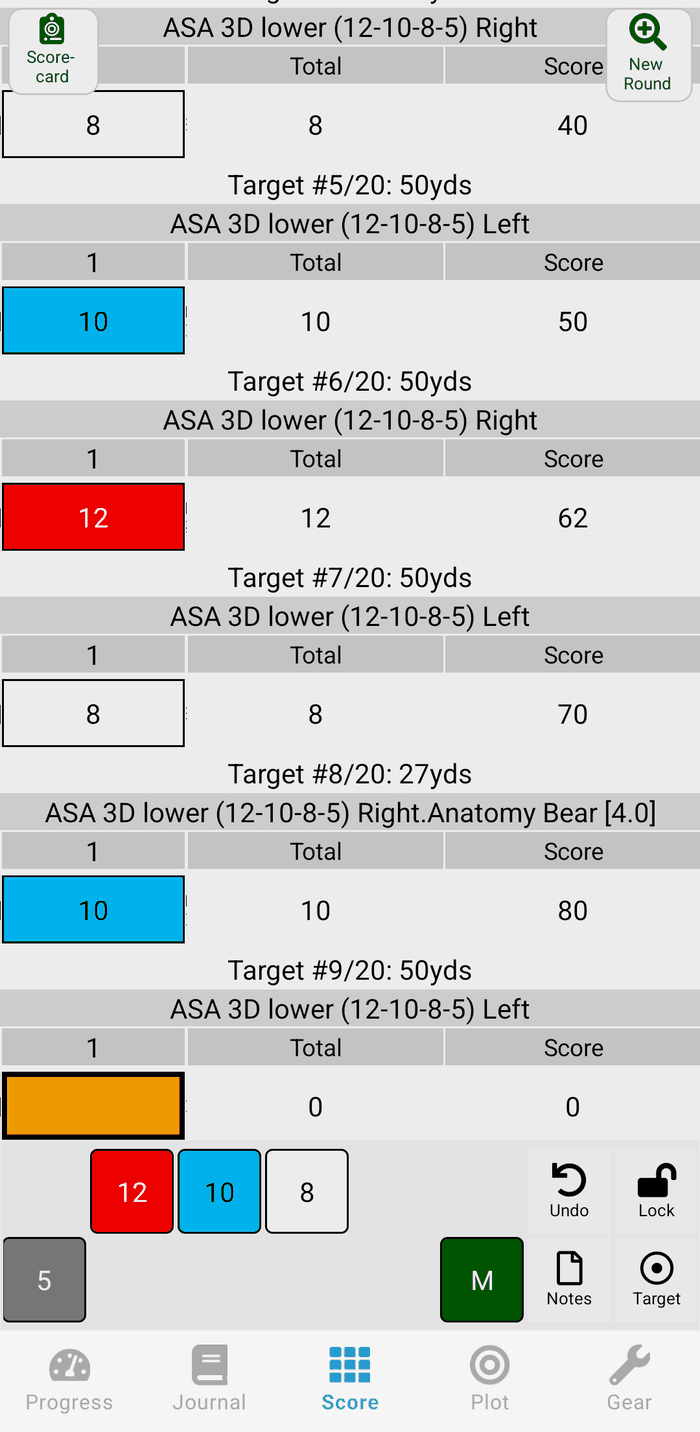
Score
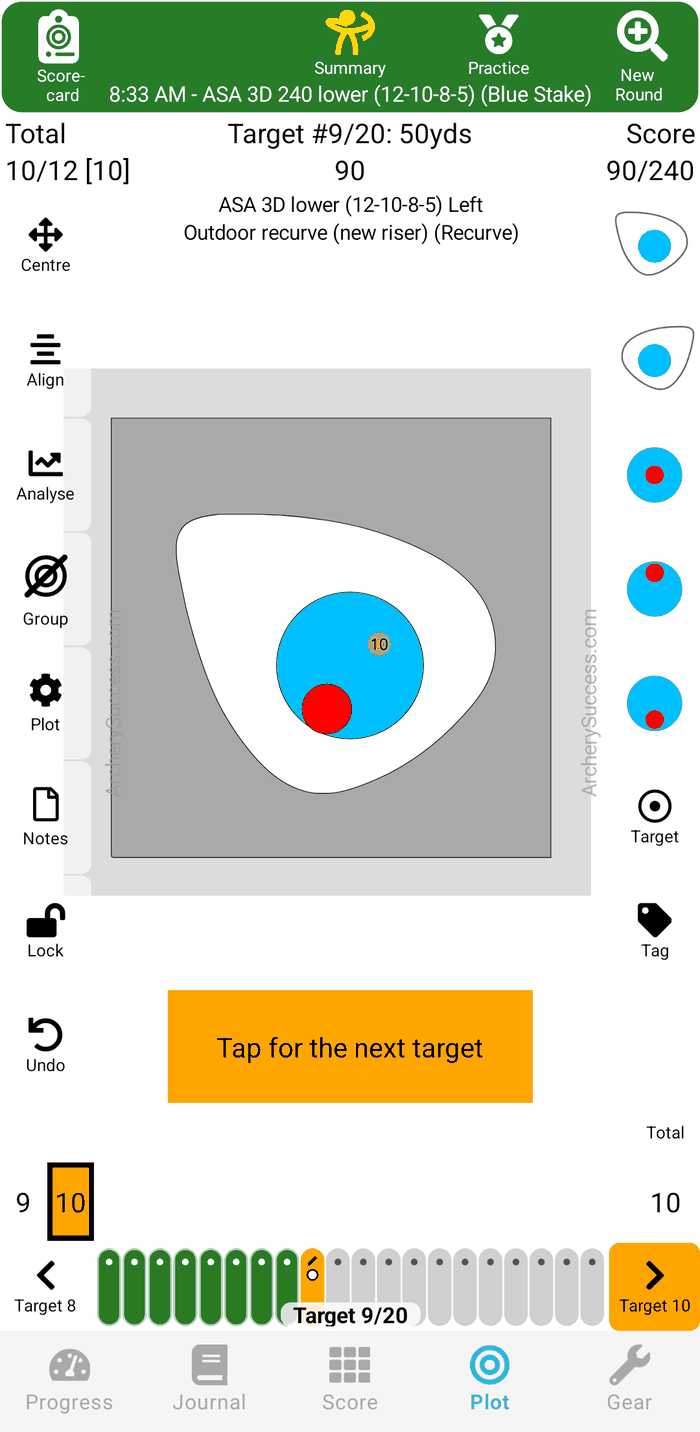
Plot
Start a round
- On the Score or Plot page, tap New Round (top right). In the Journal, tap New Entry, then New Round.
- On the Search for a Round page, type part of the name. For example, type ASA to see only the ASA rounds.
- Tap the round. If the app asks, pick Competition or Practice.
- If you start on a target other than Target #1, tap the arrow buttons at the bottom of the Plot page until the page shows your target.
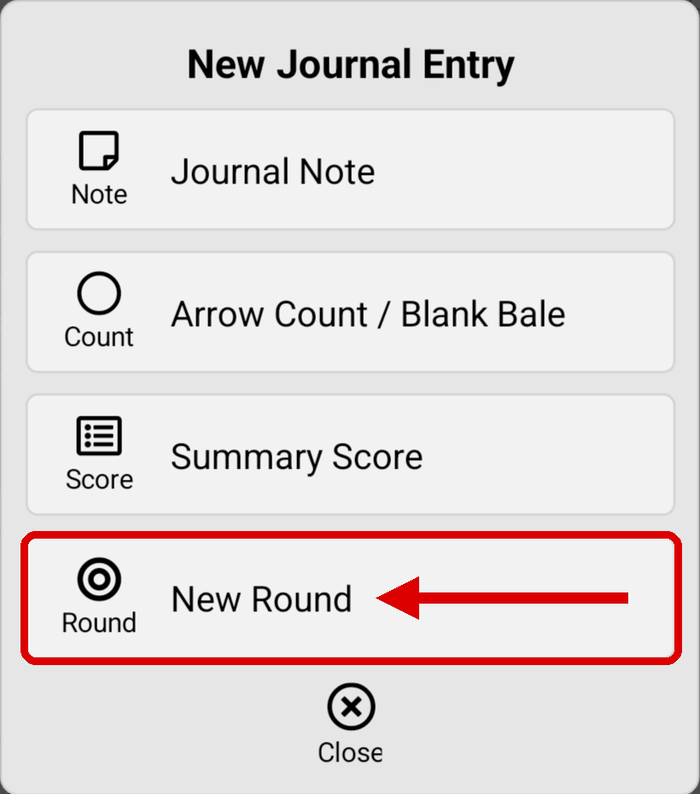
Step 1: Journal > New Entry > New Round
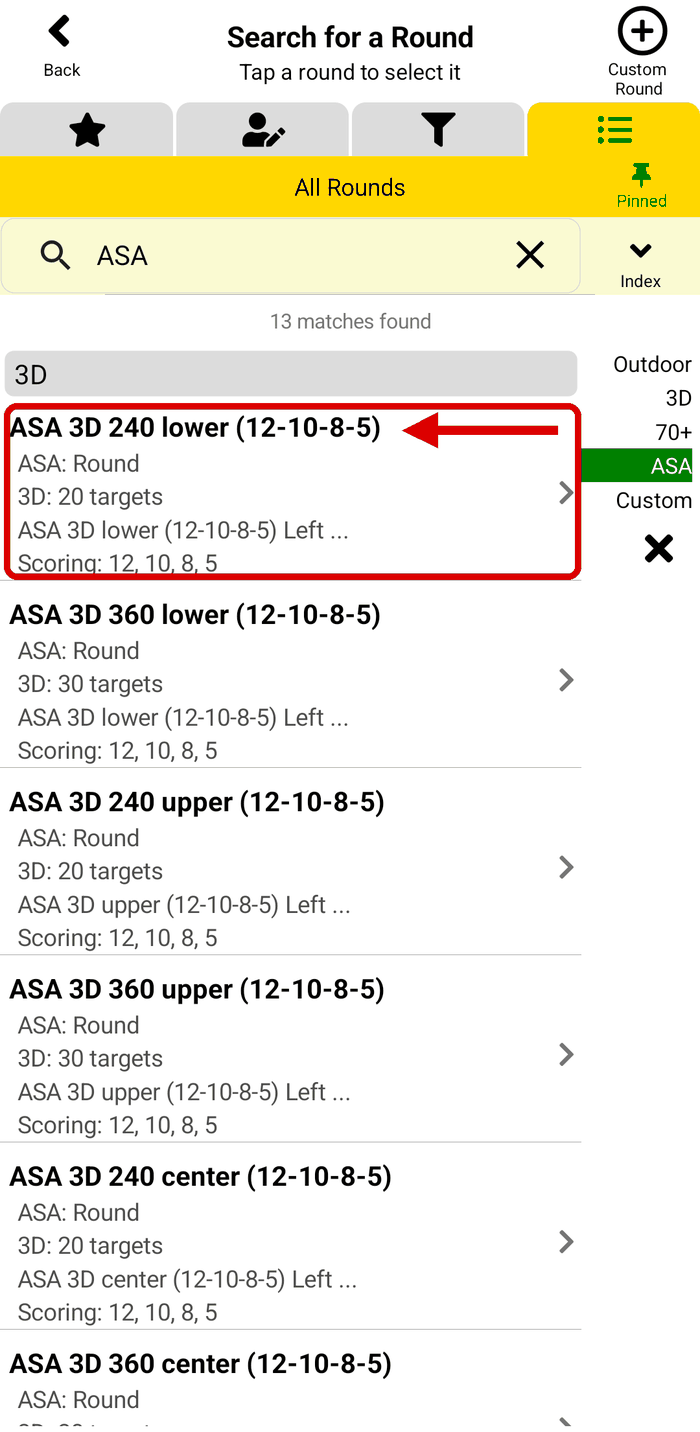
Step 2: Search for a Round
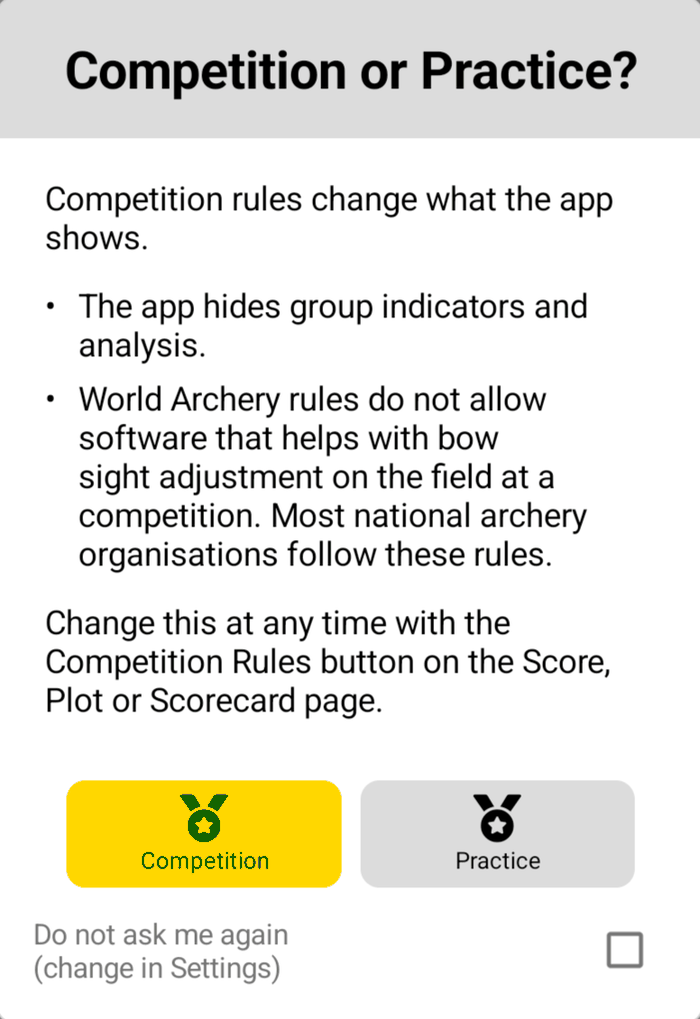
Step 3: Competition or Practice?
Change the target at each stake
A real course seldom matches a fixed list of distances and faces. So, for field, 3D, 2D and animal rounds, and the Flint Bowman and Flint Indoor rounds, you can change the target details for each target while you shoot:
- Tap the Target button. On the Score page, it is at the bottom right. On the Plot page, it is on the right, above Tag.
- The Change Target page opens for the target you shoot now. Its title names the organisation, for example ASA 3D: Change Target.
- Set what you see at this stake. The fields follow the organisation. For an ASA 3D round, you set the distance marker, the target face, a name for the target (for example "Anatomy Bear"), the distance and its unit (ft, m or yd), and the 10 ring size.
- Tap Save and shoot. The scorecard keeps the new details for this target.
Change the target before you shoot at it. If you change it later, the app keeps your arrows and draws them on the new target, so the plot does not match the target you shot at.
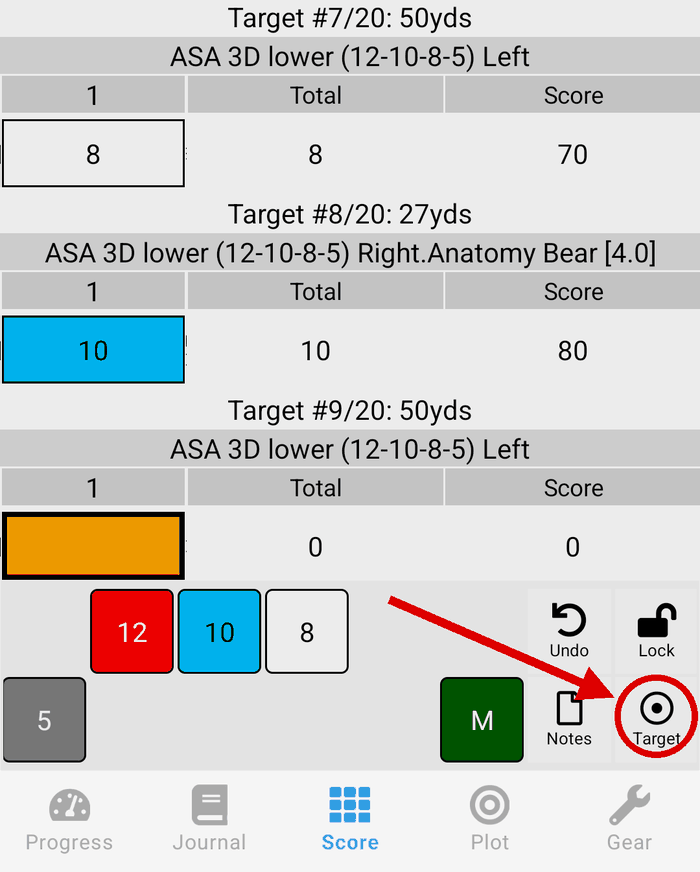
Step 1: Target on the Score page
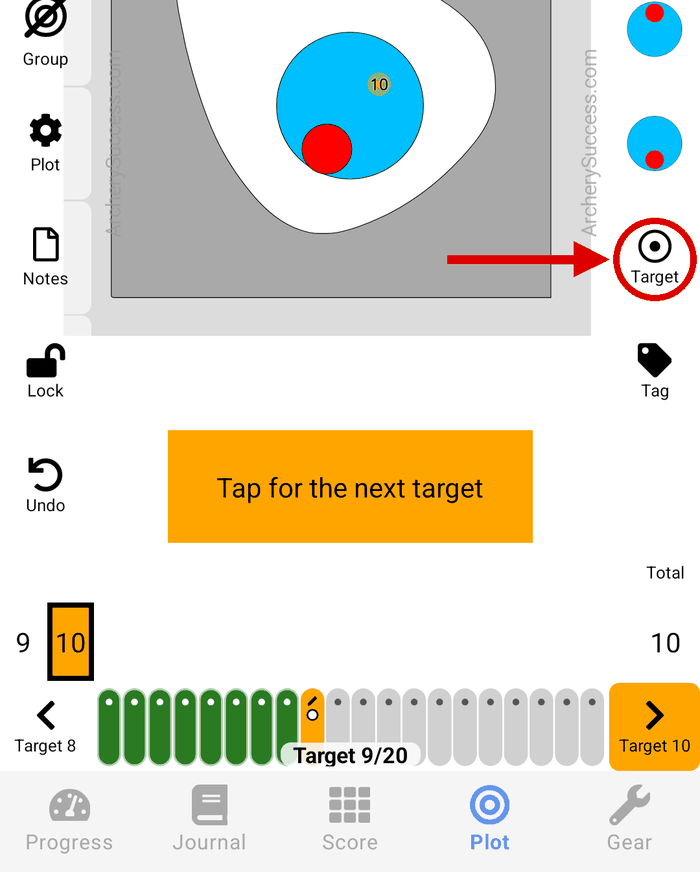
Step 1: Target on the Plot page
For many organisations, the page follows the rulebook. For example, it shows the maximum distance of the stake you pick: "Blue Stake: maximum 30 yards (27.43 metres)".
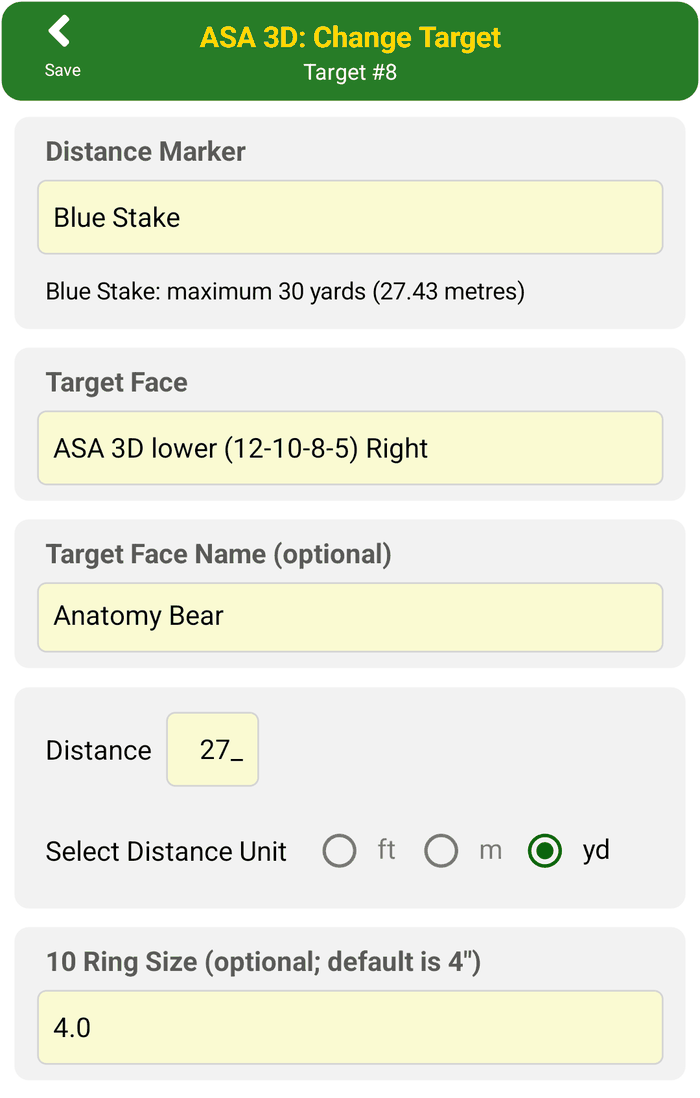
Steps 2 to 4: Change Target
See the scorecard
- A round you shoot now: tap Scorecard (top left of the Score or Plot page). Tap the Distance button on the scorecard to show the arrow plot of each target.
- A round you shot before: in the Journal, tap the round.
Pro adds score charts for Field, Animal, 3D and 2D rounds.
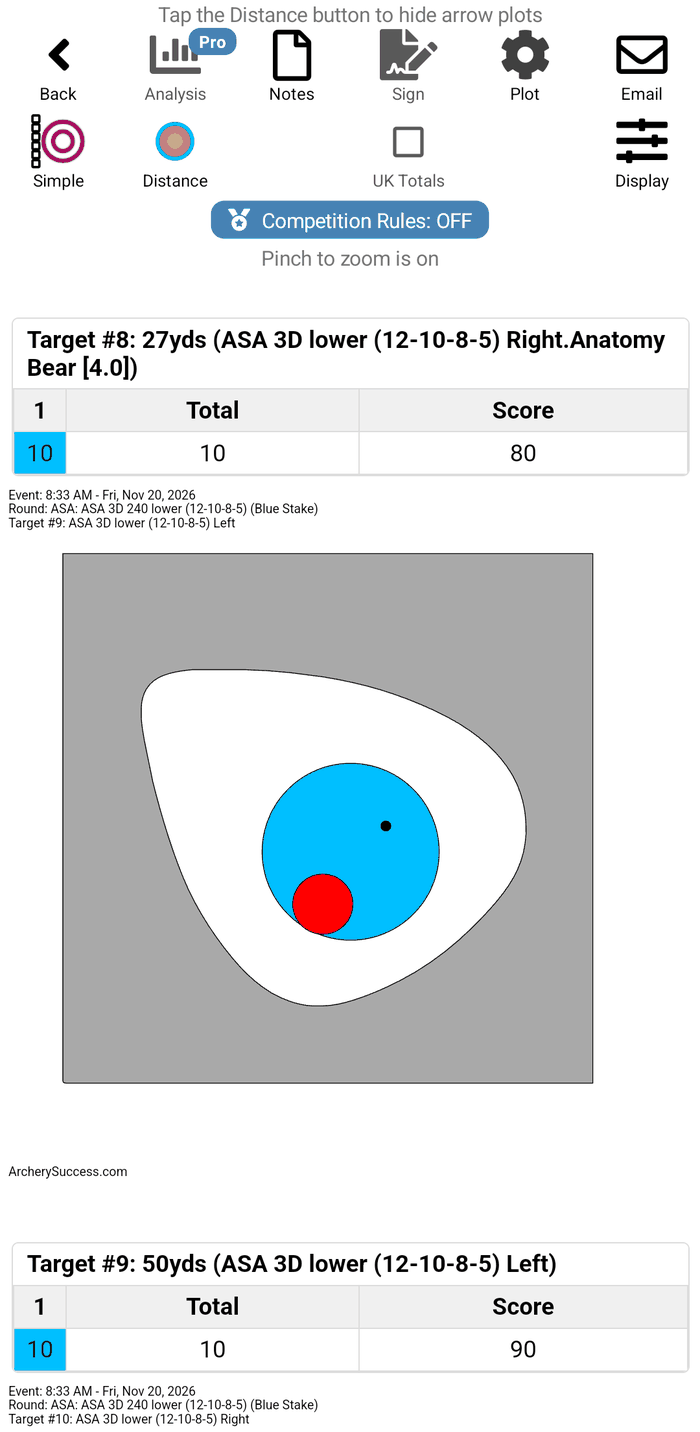
Scorecard with the arrow plots shown
Clone a course to shoot it again
When you shoot the same course again, clone the round you shot. The clone keeps your target details, and it shows in the round list under its own name.
- In the Journal, swipe the field round right and tap Clone Round.
- Type a New Round Name, for example "Club 3D course". Leave it empty and the app names it.
- Tap Clone. The Manage Rounds page opens, with the new round under Custom & Clone Rounds. Next time, find it on the Search for a Round page.
You can clone 2D, 3D, Field and Animal rounds, and the Flint Bowman and Flint Indoor rounds.
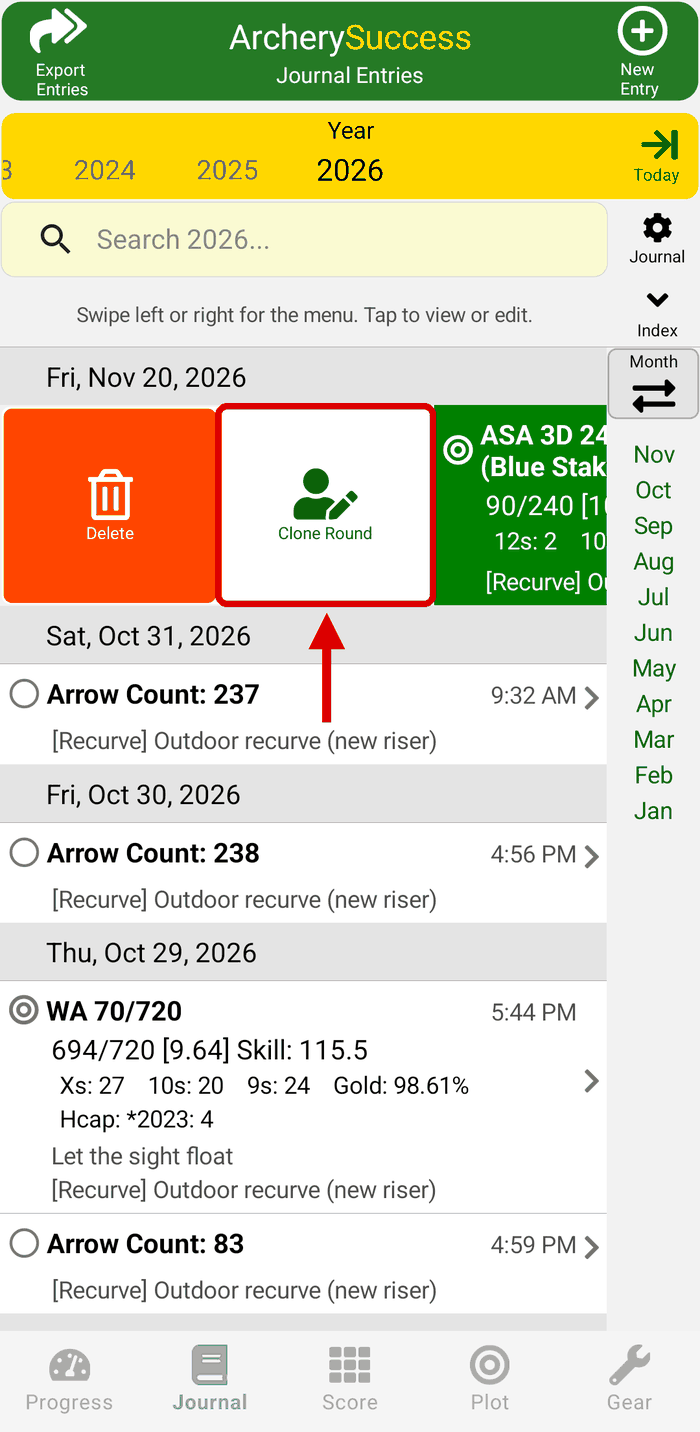
Step 1: swipe right on the field round Journal entry
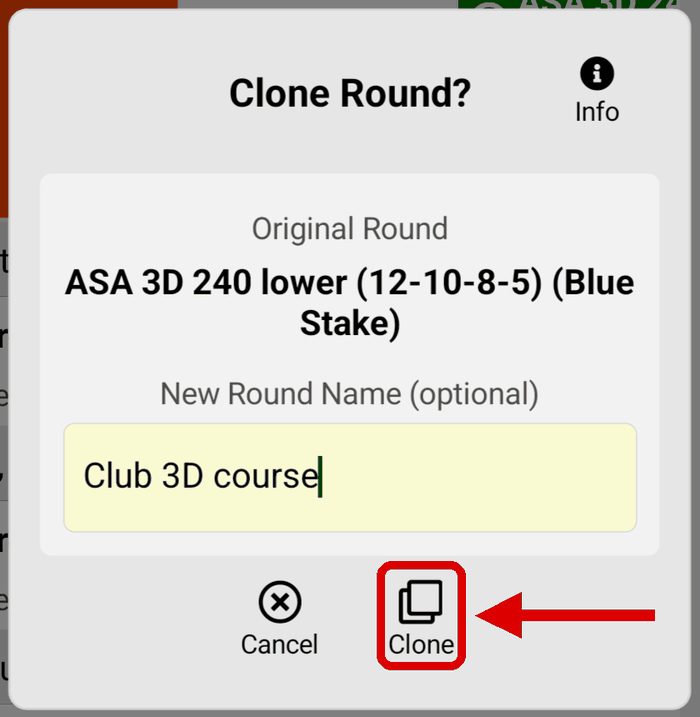
Step 2: Clone Round?
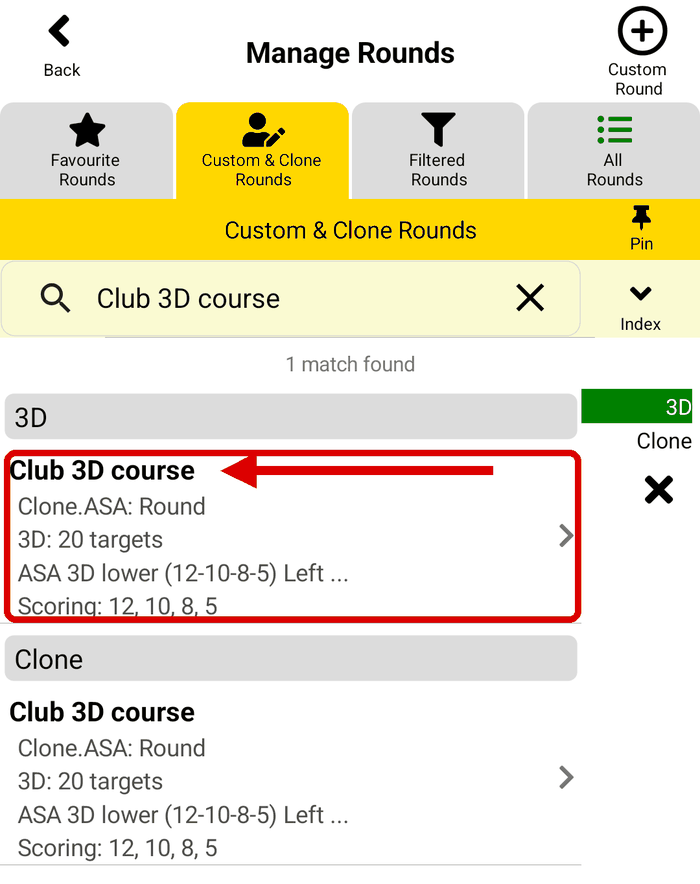
Step 3: the new round under Custom & Clone Rounds
No round for your course in the list? Make your own on the Search for a Round page: tap Custom Round (top right). See Custom Rounds.
Still stuck? See the Support page for more how-to guides, or contact us - we reply within 2 working days.