Your quiver should hold only the arrows that group together. To find the arrows that do not, number each arrow, tag it in the app when you plot it, and compare the group of each arrow. Archers call this arrow culling.
Arrow tags and the combined plot are in the app you bought. They do not need Pro.
This guide covers:
- Before you start
- Tag each arrow, and change a tag
- Compare your arrows
- What to do with an arrow that does not group
Before you start
The results are good only when these 3 things are true:
- You shoot the same way each time.
- You know when a shot was bad, and you leave that arrow out.
- You plot enough arrows. A few arrows show random spread, not how each arrow flies.
Then prepare your arrows:
- Weigh your arrows. All the arrows must have the same weight and the same parts. Remove any arrow that is different before you start.
- Number your arrows. Write a number on each shaft, or use numbered arrow wraps. The app has tags 1 to 24.
Tag each arrow
- Plot the arrow on the Plot page, then tap Tag (on the right).
- In the Assign Tag popup, tap the number of the arrow.
- The tag shows in the Tag row, above the arrow score.
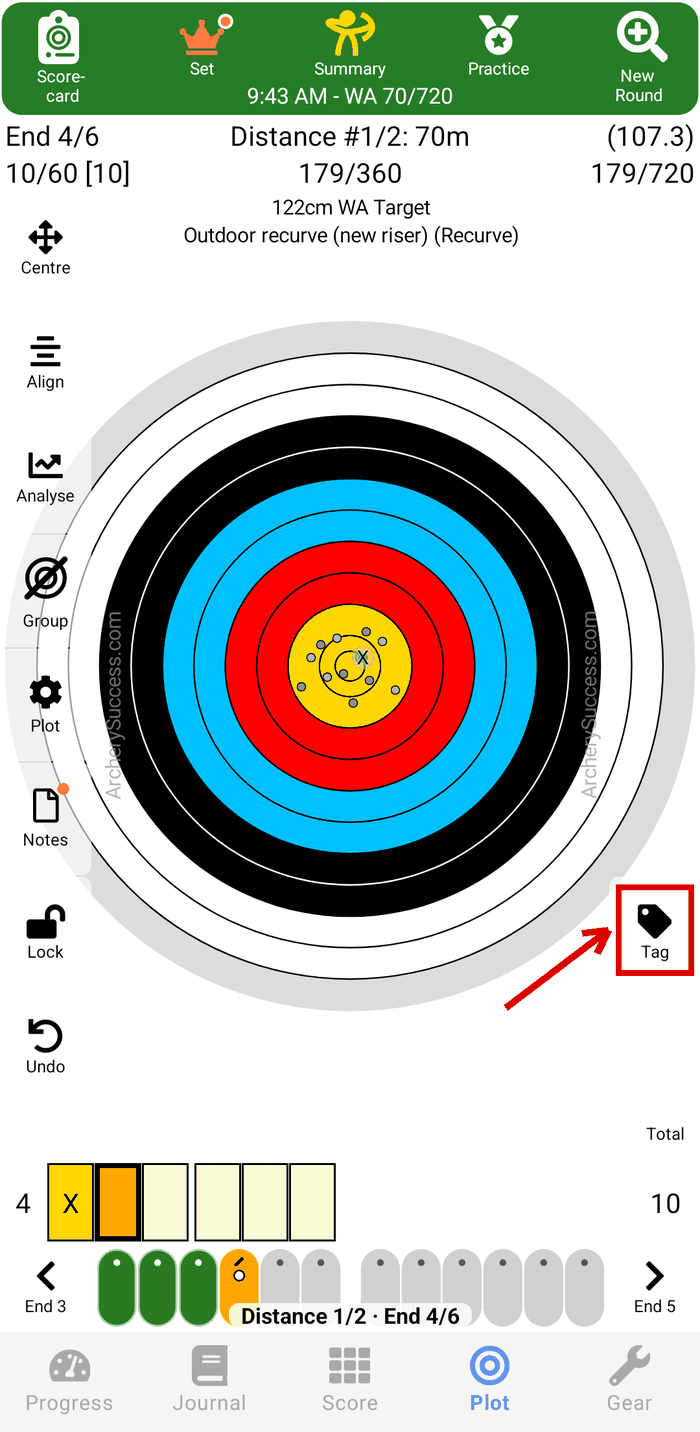
Step 1: tap Tag
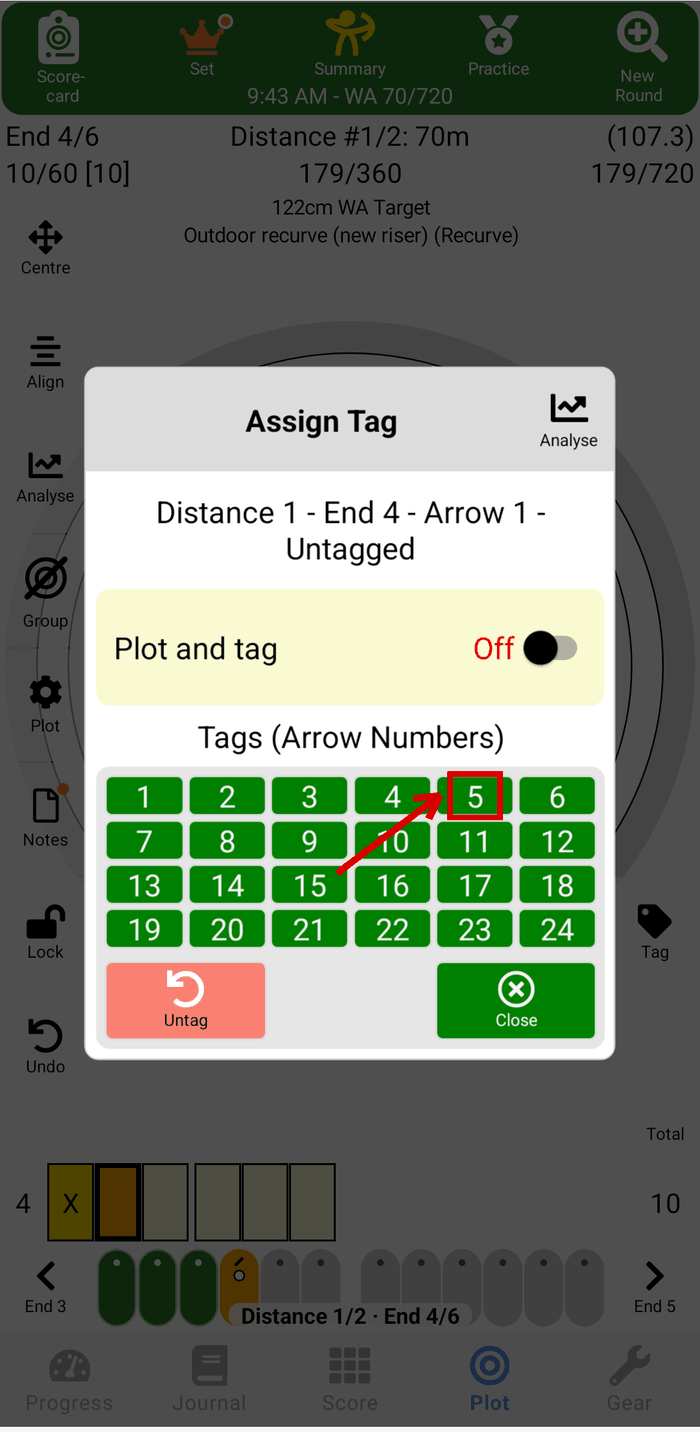
Step 2: tap the arrow number
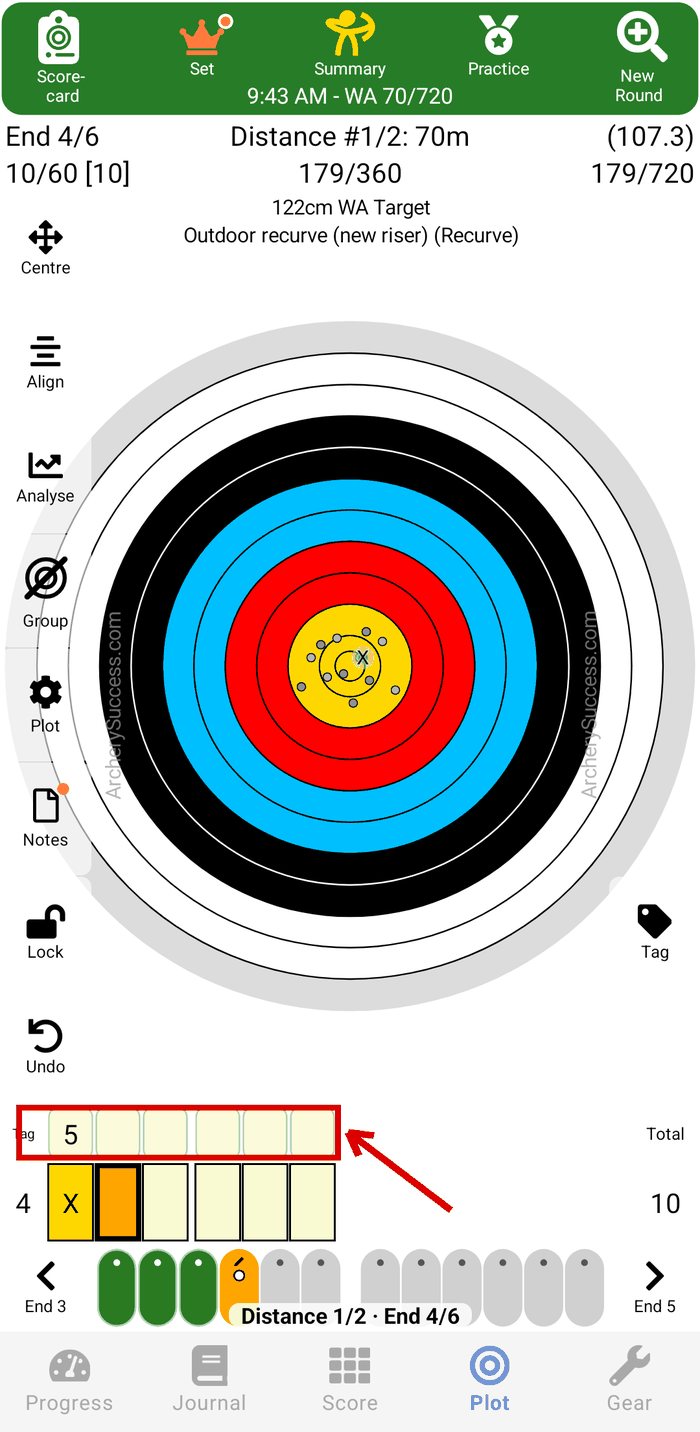
Step 3: the Tag row
Turn on Plot and tag in the popup, and the popup opens after each arrow you plot.
Change a tag, or tag another arrow
- Tap the score of the arrow in the row at the bottom. It turns orange. To find an arrow in another end, first tap the arrow buttons at the bottom left or right (here End 3 and End 5) to move to the end before or after.
- Tap Tag. The popup names the arrow and its tag now, for example "Distance 1 - End 4 - Arrow 1 - Tag 3".
- Tap the new number. Or tap Untag to remove the tag.
Only a plotted arrow can have a tag. For an arrow you scored on the Score page, the popup shows Plot an Arrow to Tag.
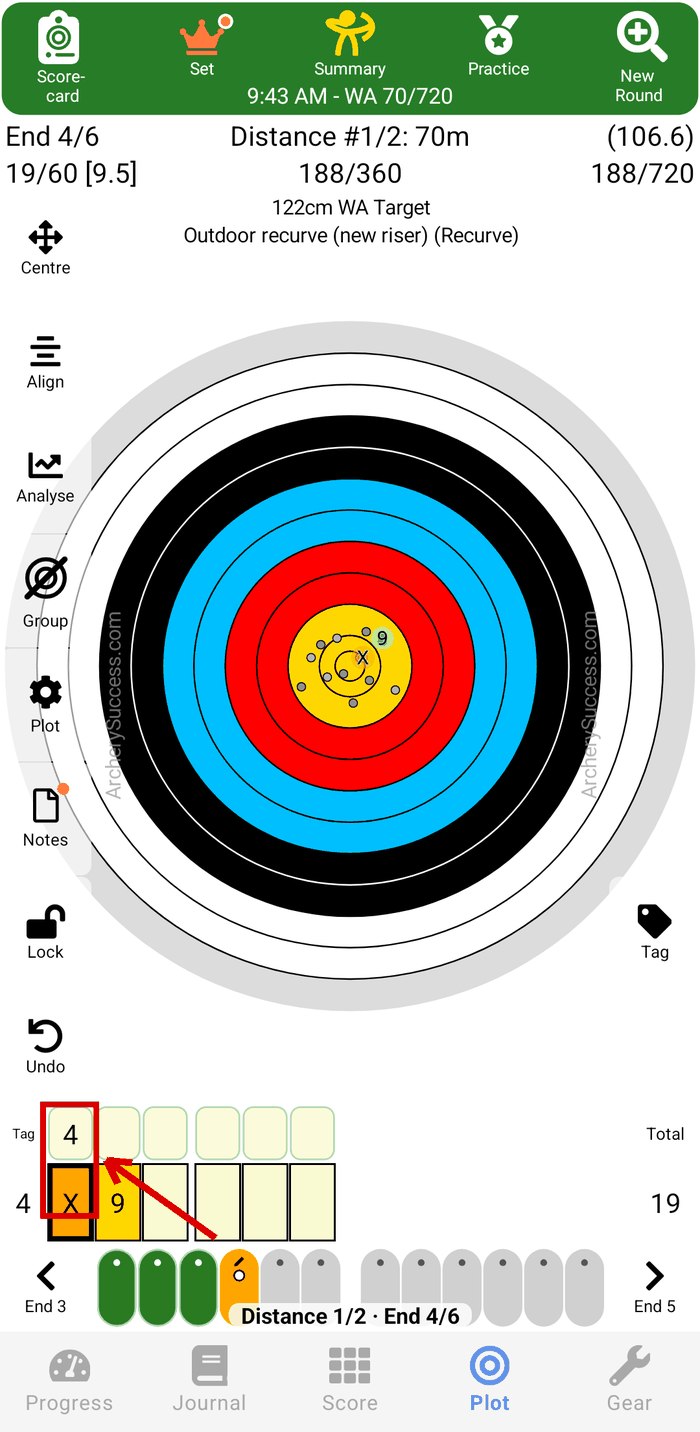
The tag changed from 3 to 4
Shoot and tag more ends, over more than one round, until each arrow has many plots.
Compare your arrows
No Analyse button on the Plot page? Competition Rules are on. They hide the Analyse button, the Group button and the Analysis page. To turn them off, tap the Comp / Practice button on the Score or Plot page.
- Open the Analysis page:
- The round you shoot now: on the Plot page, tap Analyse (on the left). Or tap Analyse in the Assign Tag popup.
- A round you shot before: in the Journal, swipe the round left and tap Analyse.
- To add more rounds of the same round type, tap Rounds (top right). Select the rounds, then tap Save. All their arrows show on one target: the combined plot.
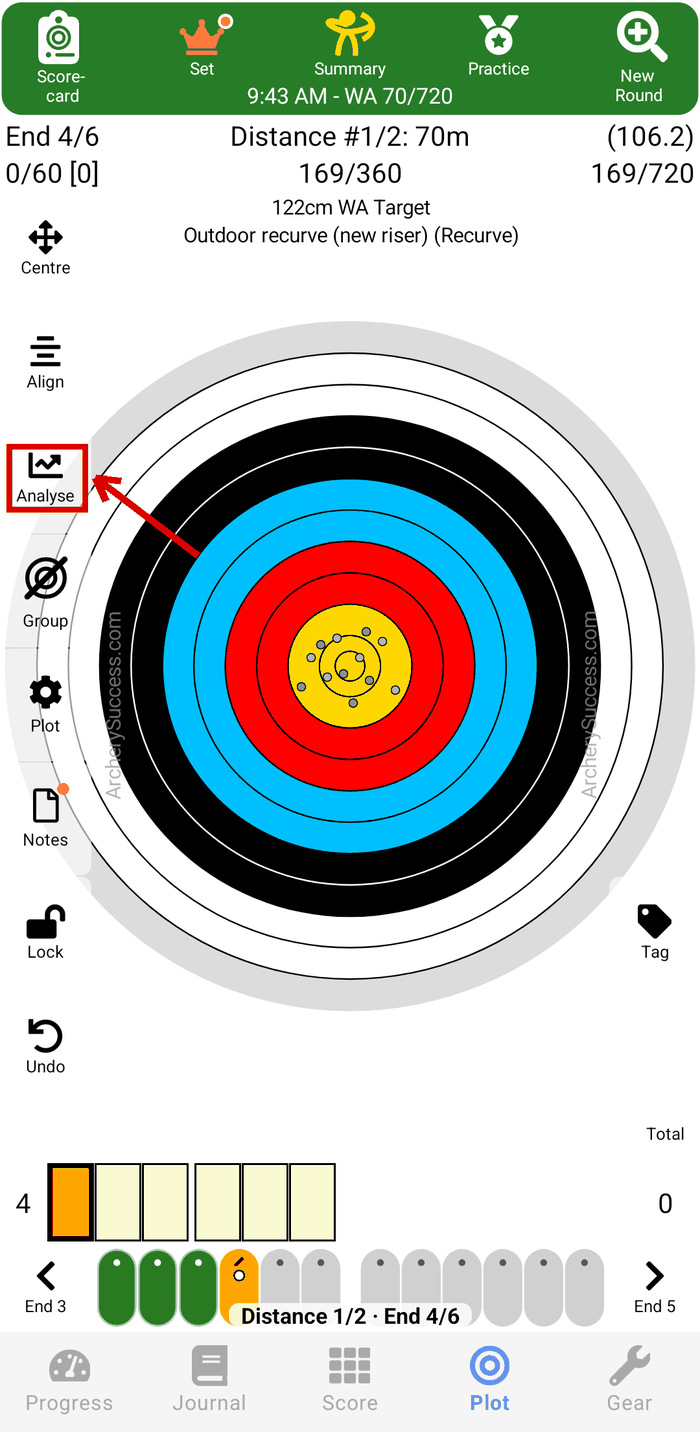
Step 1: Analyse
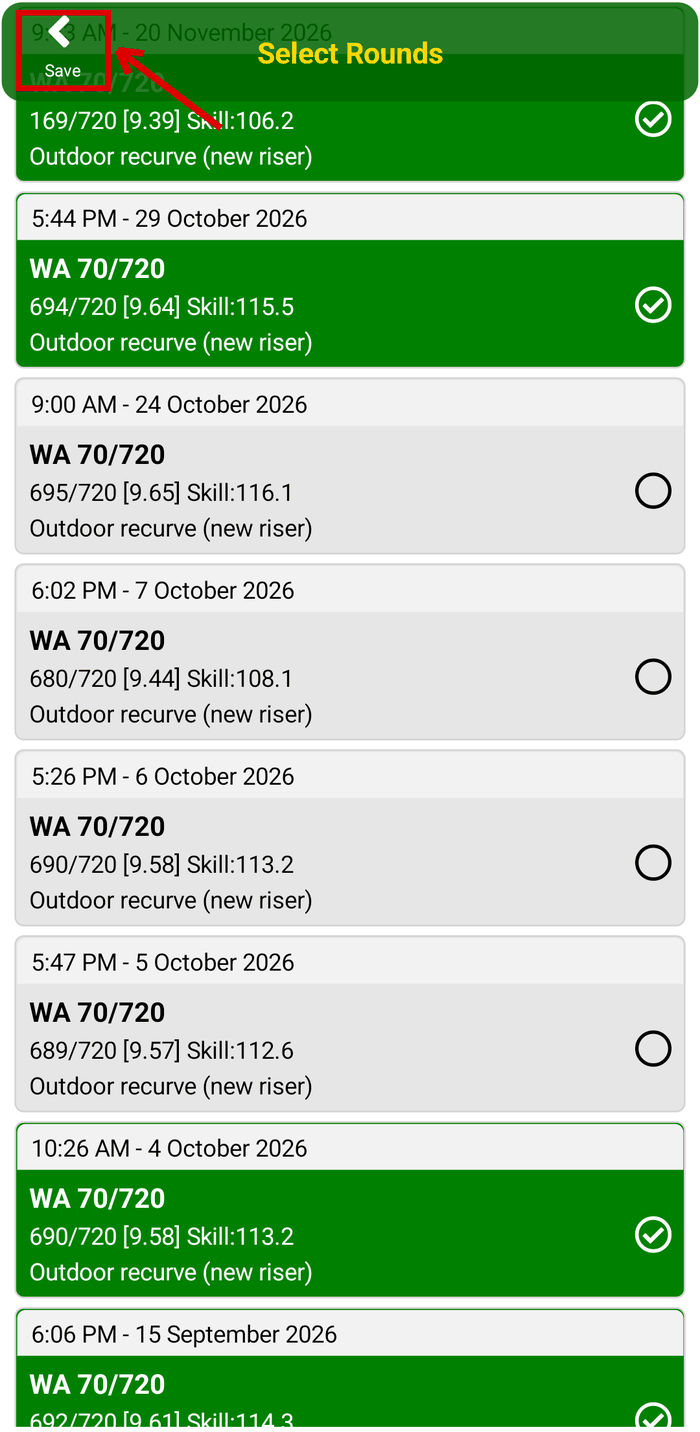
Step 2: Select Rounds, then Save
- Tap a tag number at the bottom, for example 10. The arrows with that tag show in dark green, with the group of that tag. The bar at the top gives the Tag Group Offset: how far the centre of that group is from the centre of all your arrows, and the radius of that group.
- Tap each tag in turn and compare.
- Move the slider at the bottom to remove the flyers, the arrows far from the group. Then tap Chart (bottom right): for each tag, Tag % Out is the share of its arrows that are flyers, and Tag % In is the rest.
An arrow that groups to one side, or makes a wider group than the others, is the one to check. In the example, tag 7 has a radius of 6.05 and tag 10 a radius of 4.04.
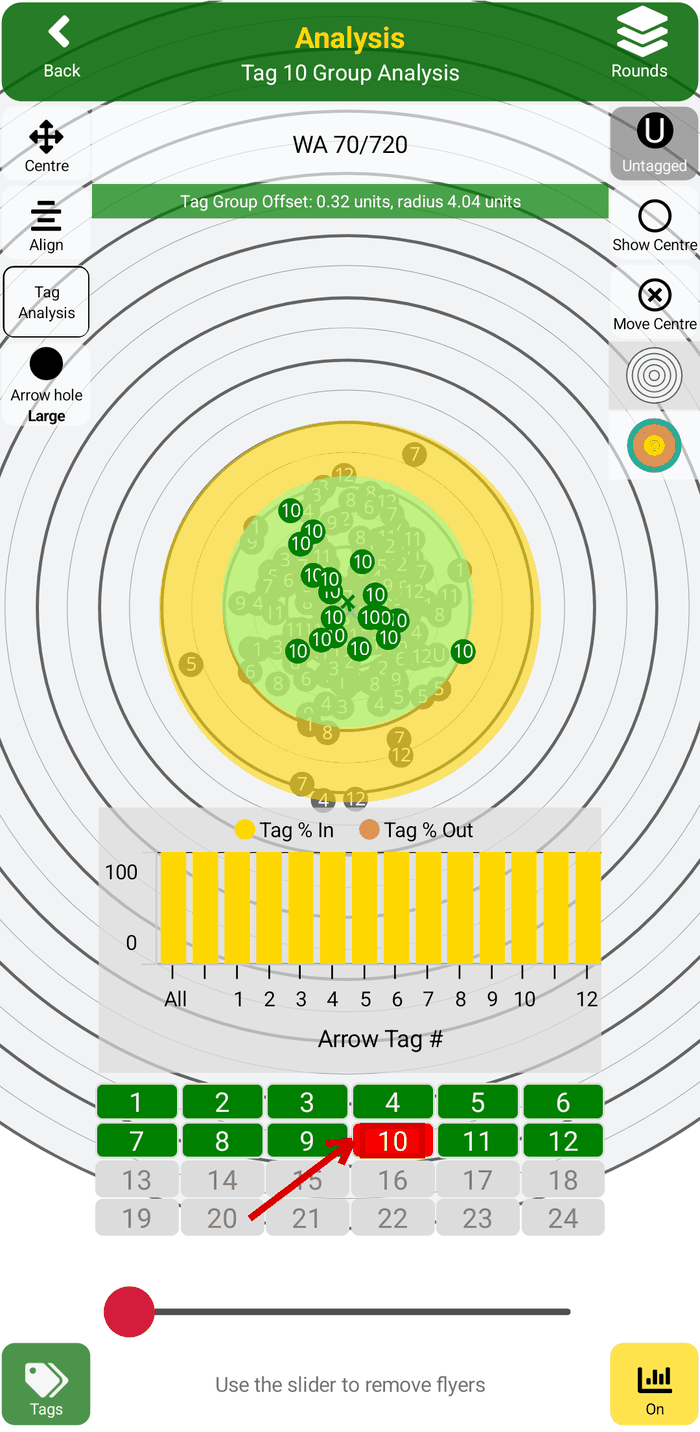
Tag 10: a small group
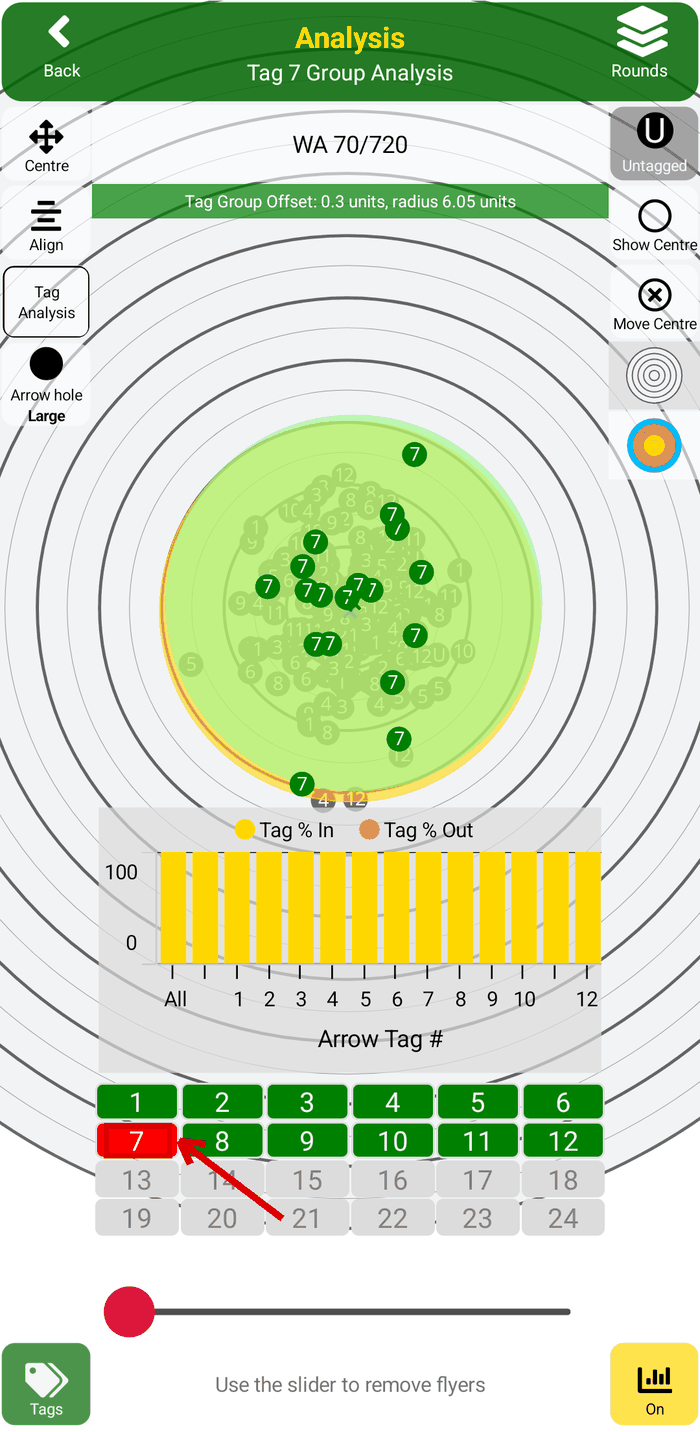
Tag 7: a wider group
One more setting:
- Tag Analysis (on the left) sets what the analysis uses: Arrow Tag (default), the number you give each arrow, or Arrow Position, the place of the arrow on the scorecard (the end, and the arrow in that end).
What to do with an arrow that does not group
- Check it first: straightness, weight, spine, nock, fletching, point weight and insert.
- Mark it, and keep it out of your quiver until you fix it or replace it.
- Test it again after a change: shoot and tag more rounds. The arrow should now group with the rest. If it does not, look for another cause.
What next?
- How to score a round - start the round and plot each end.
- Archery Plotting - the Plot page, the group indicator and the combined plot.
Need more help? See the Support page for more how-to guides, or contact us - we aim to reply within 2 working days (public holidays not included).