Export your journal to read it on a computer, send it to your coach, or keep your own copy. The file holds each round and training note, down to each arrow.
This guide covers:
Make an export
- On the Journal page, tap Export Entries (top left). The List of Exports page opens.
- Tap New Export (top right). The Edit Export page opens.
- Type an Export Name, for example "Coach - November". You need a name only to keep the export in the list.
- Choose a week range or a full year. See Week range or full year.
- To export only some entries, type a word in Text, for example the name of a round.
The Export Preview shows the entries the file will hold, and how many.
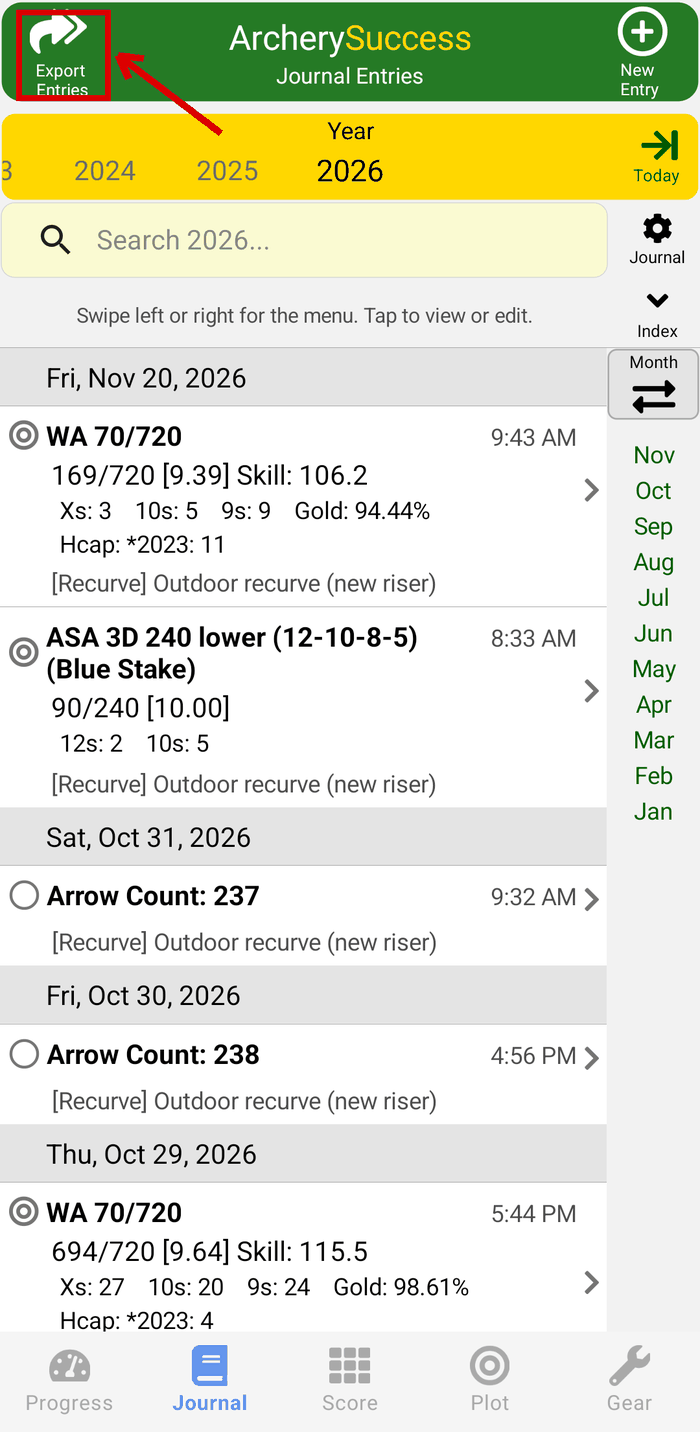
Step 1: Export Entries
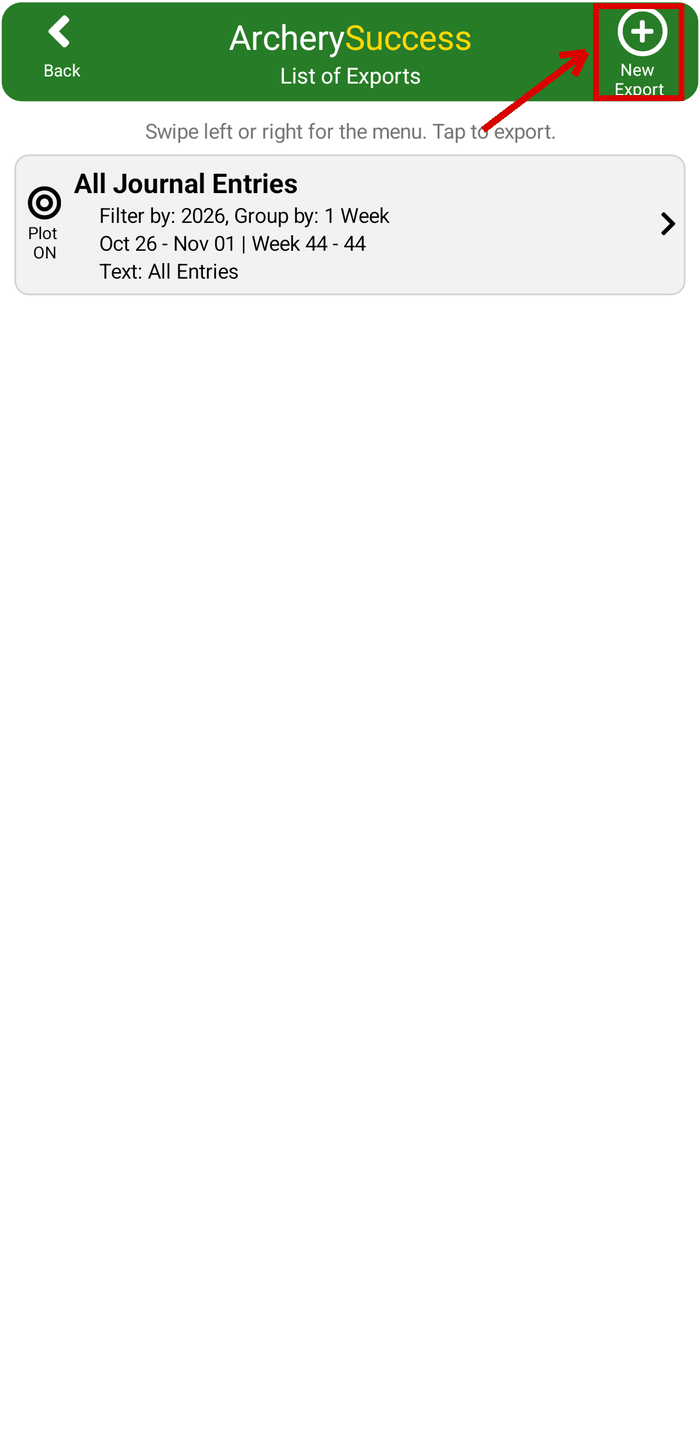
Step 2: New Export
Week range or full year
The Target Plots switch at the top sets what the file holds:
- Target Plots ON: the Excel file holds the target plots of your arrows. Pick the year in Filter by Year, then Group by 1, 2, 3 or 4 weeks, then the week range, for example "Nov 16 - Nov 22 | Week 47 - 47".
- Target Plots OFF: the whole year, with no plots. Pick the year in Filter by Year. The page title shows, for example, "2026 - Full Year".
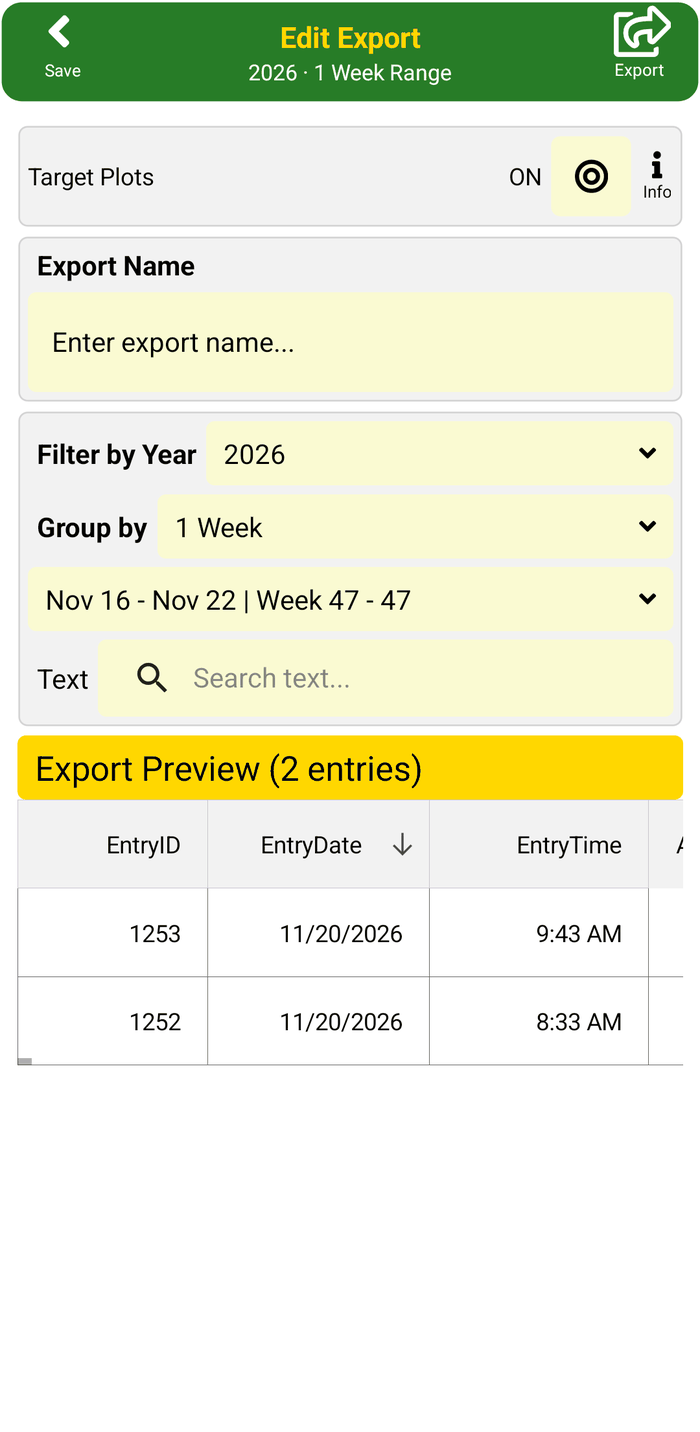
Target Plots ON: a week range
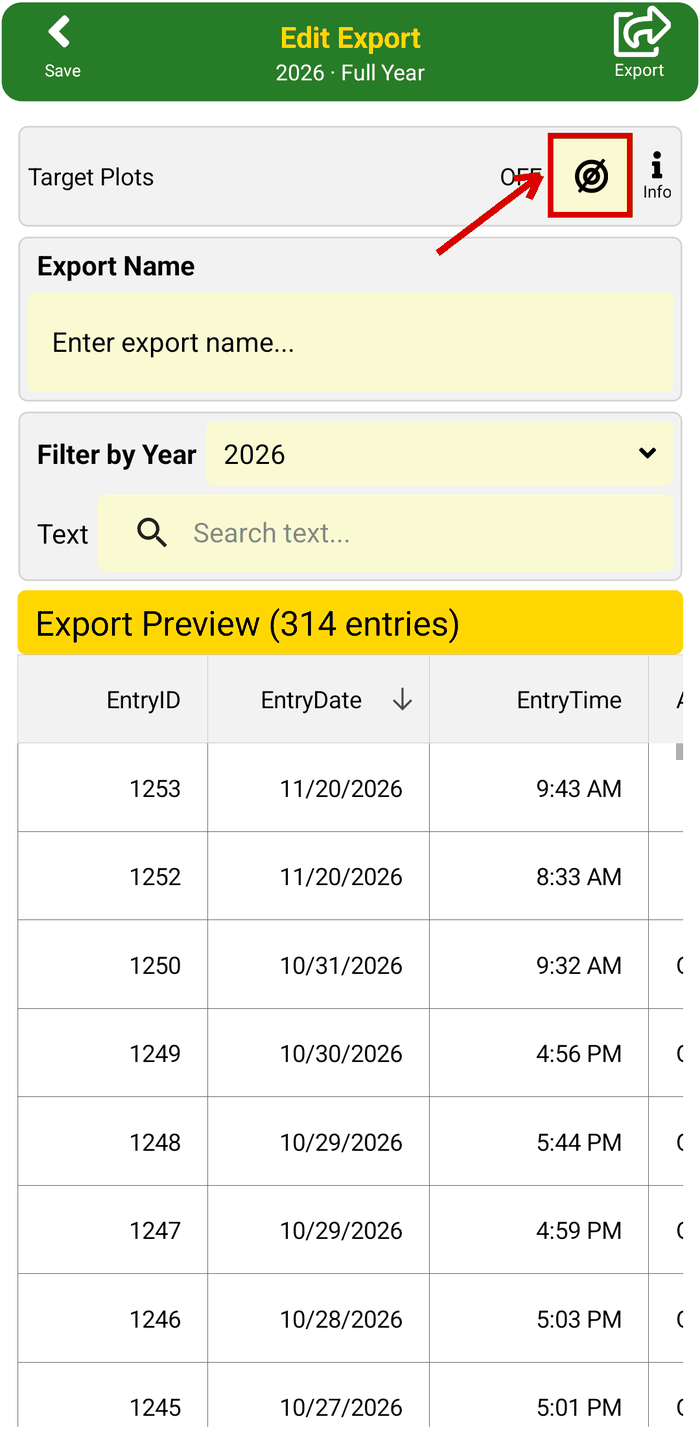
Target Plots OFF: the full year
Share the file
- Tap Export (top right).
- On the Export Journal popup, tap Excel or CSV. CSV holds the data only, with no plots, for a spreadsheet or another program.
- Your phone opens its share sheet. Send the file by email, save it to your cloud drive, or share it with an app.
When you leave the page, tap Save (top left) to keep the export in your List of Exports. An export with no name is not saved: the app asks you to Add Name or Discard it.
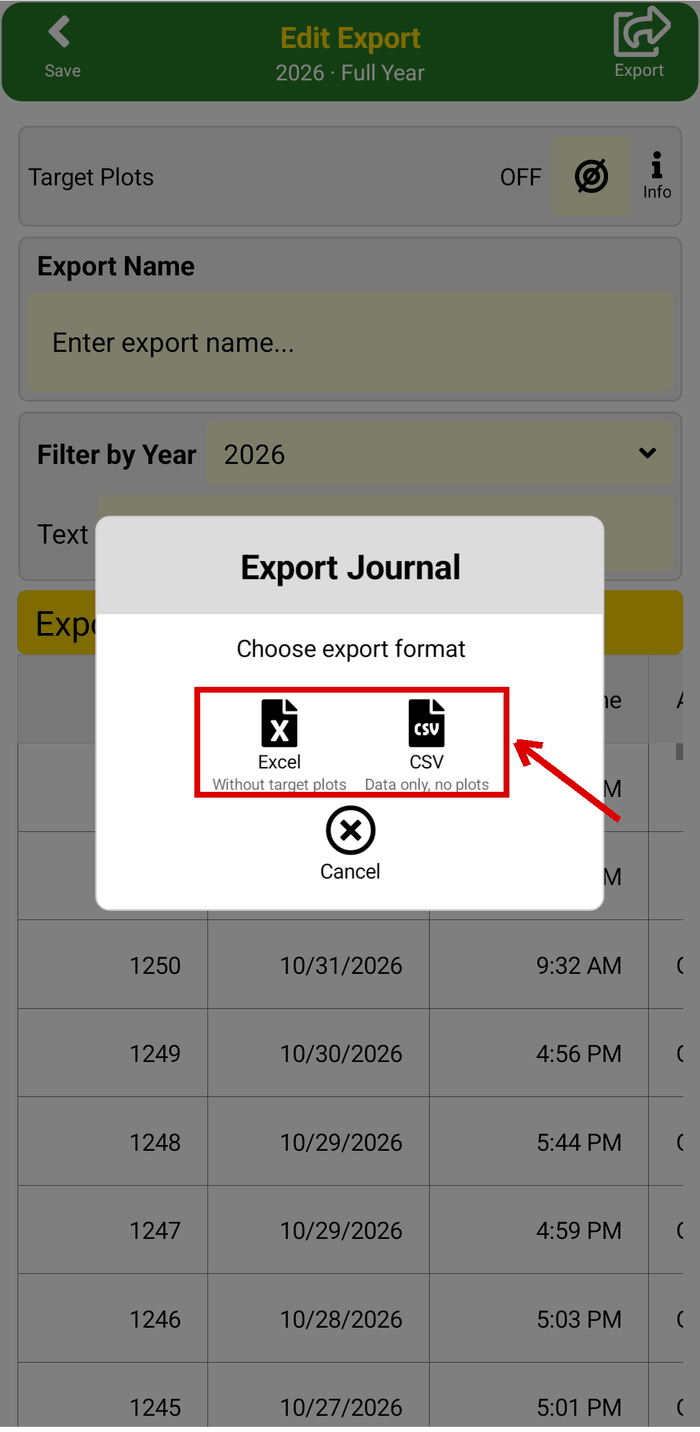
Step 2: Excel or CSV
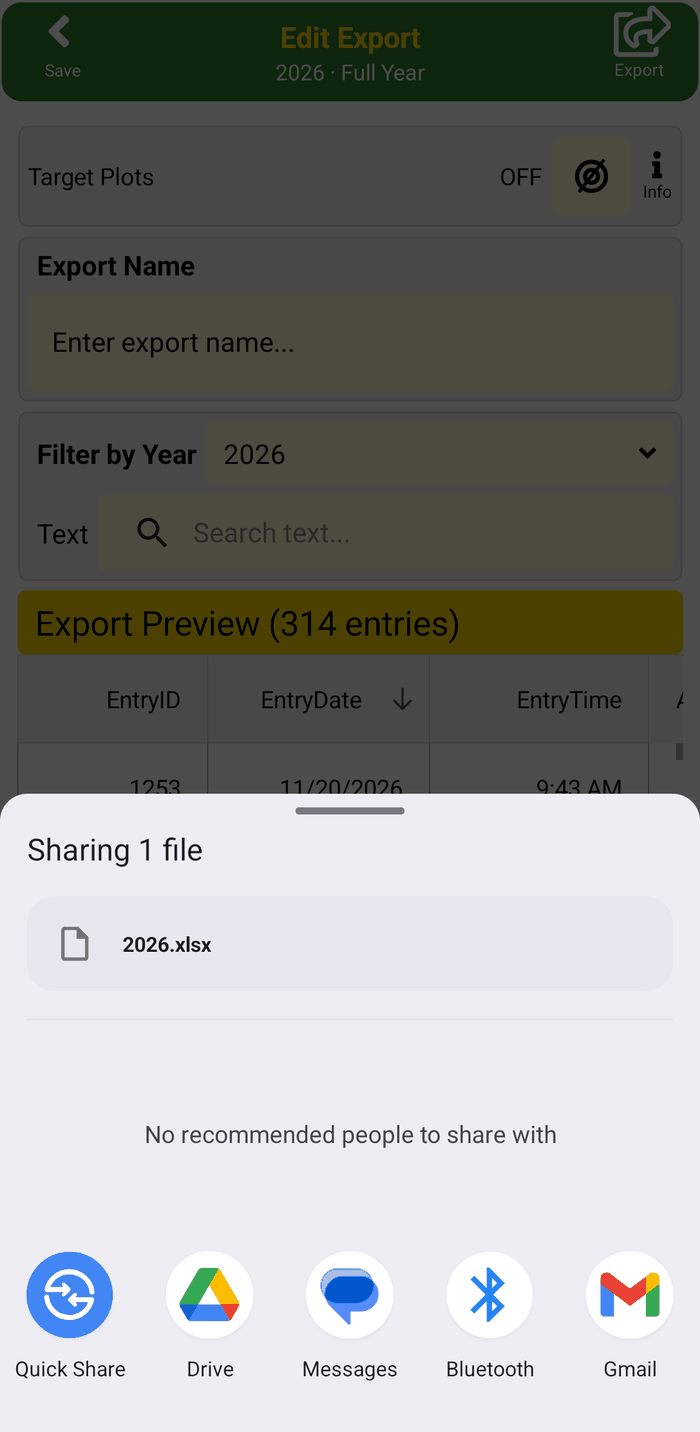
Step 3: share the file
Use a saved export again
On the List of Exports page:
- Export it again: tap it.
- Change it: swipe it left and tap Edit.
- Delete it: swipe it right and tap Delete.
Other exports
- Trends: a PDF or a CSV file of your charts. See the Progress page.
- Gear and sight settings: a PDF or a CSV file. See the Gear page.
- All your data: open Settings > Legal > Export My Data. You get all your data as a zip of CSV files.
All of these exports are in the app you bought. They do not need Pro.
What next?
- Backup - keep a copy of all your data, not only an export.
- How to transfer your data to a new phone
- Archery Journal - what the Journal holds.
Still stuck? See the Support page for more how-to guides, or contact us - we reply within 2 working days.